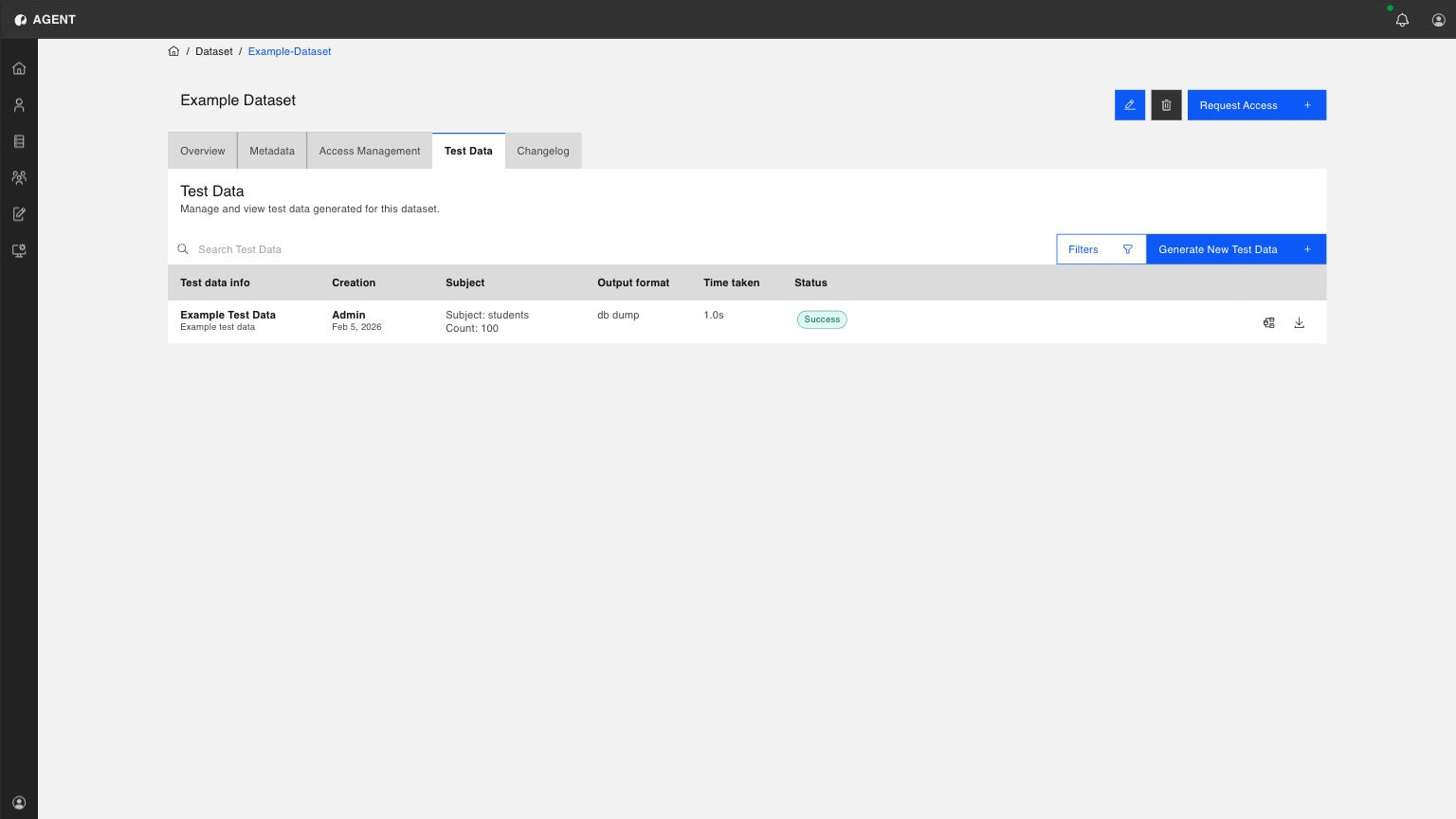
Access the Datasets tab in the sidebar.
Test Data
Overview
Test Data Generation lets you create schema-aware datasets for testing without copying production data or maintaining manual fixtures. Generated data conforms to the detected schema (types, formats, constraints), so you can run meaningful tests without exposing sensitive information. This guide explains how to generate test data for a single table or across related tables while keeping relationships consistent, and how to download and reuse generated datasets in local development, staging, and CI pipelines.
The test data generation process consists of the following steps:
1
2
Choose the one to generate Test Data for from the list of datasets and click it to access its overview.
3
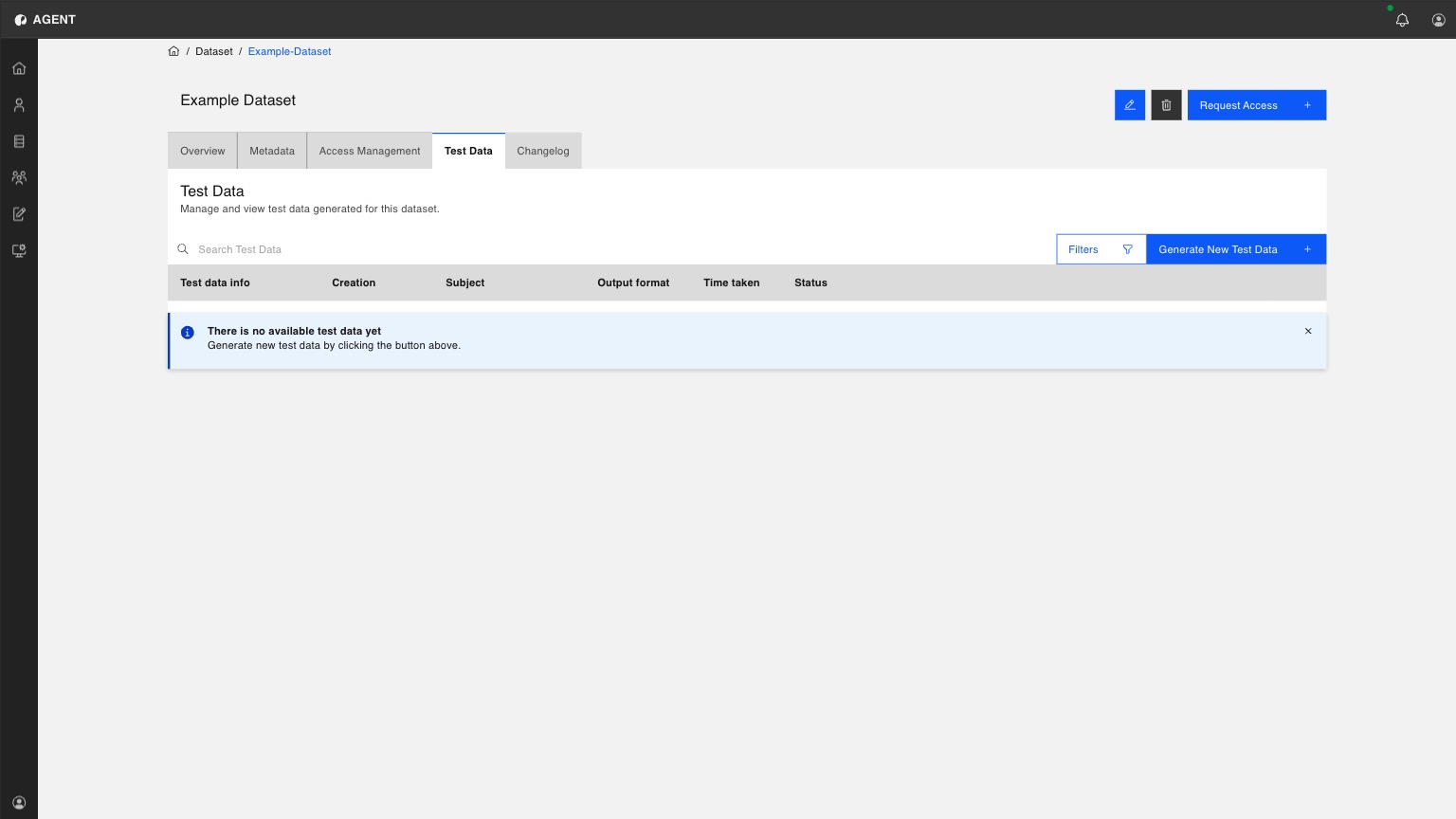
Click the Test Data tab on top.
Note
Test data tab is only visible when Test Data Feature is enabled for the platform and the selected datasets metadata includes semantic types.
4
To generate new test data, Click the Generate New Test Data button.
5
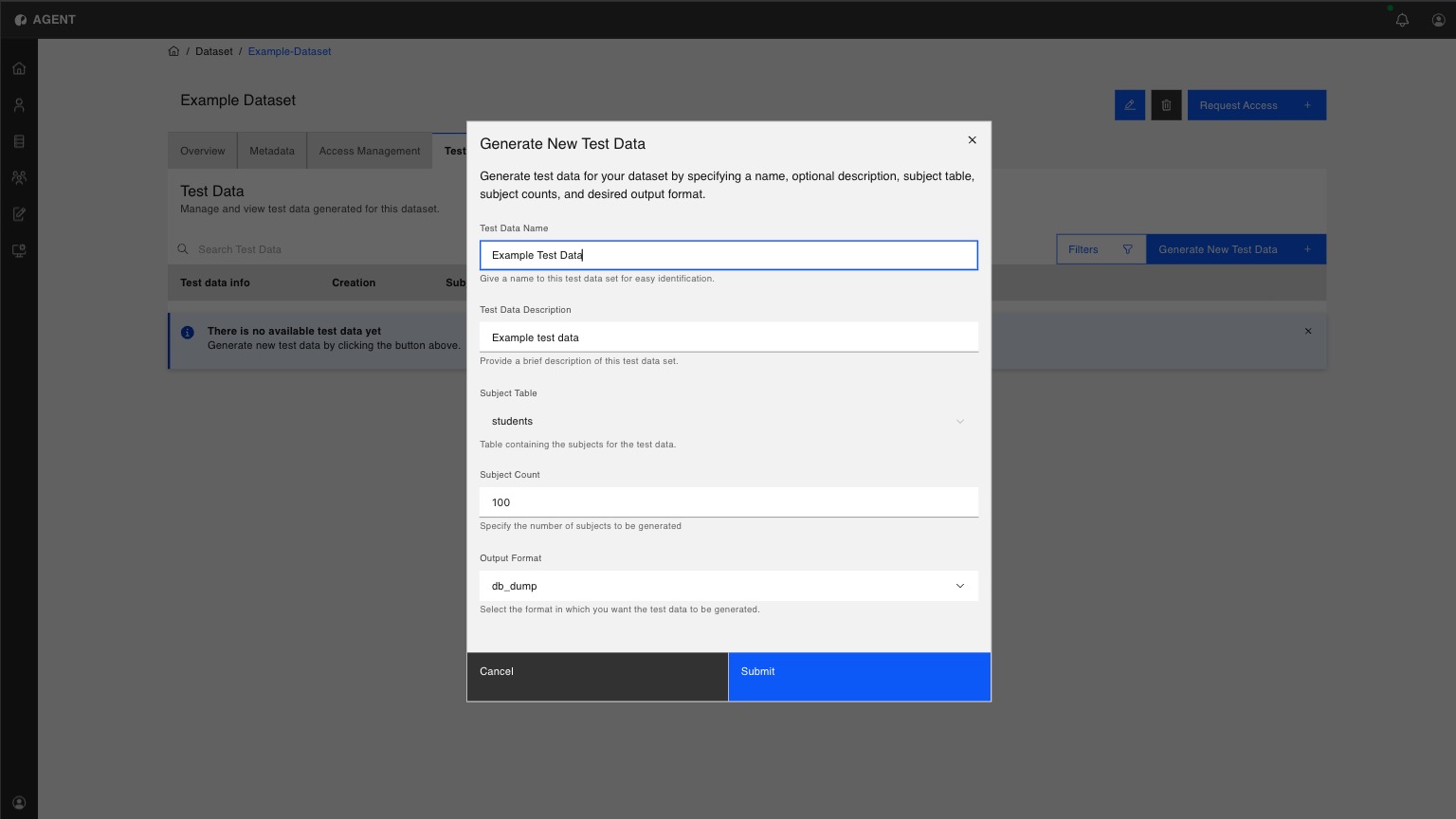
A pop-up window with Test Data Generation Form will appear.
The form lets you provide details to identify your test data, and also configure generation parameters. The form has the following fields:
1
Test Data Name
The name of the test data.
2
Test Data Description
A description of the test data for all other users to see.
3
Subject Table
A read-only dropdown input specifying the table containing the subjects for the test data generation. This pre-filled data is automatically extracted from the dataset's metadata and cannot be edited during test data generation.
4
Subject Count
The number of subjects to be generated in test data.
5
Output Format
The format in which you want the test data to be generated.
6
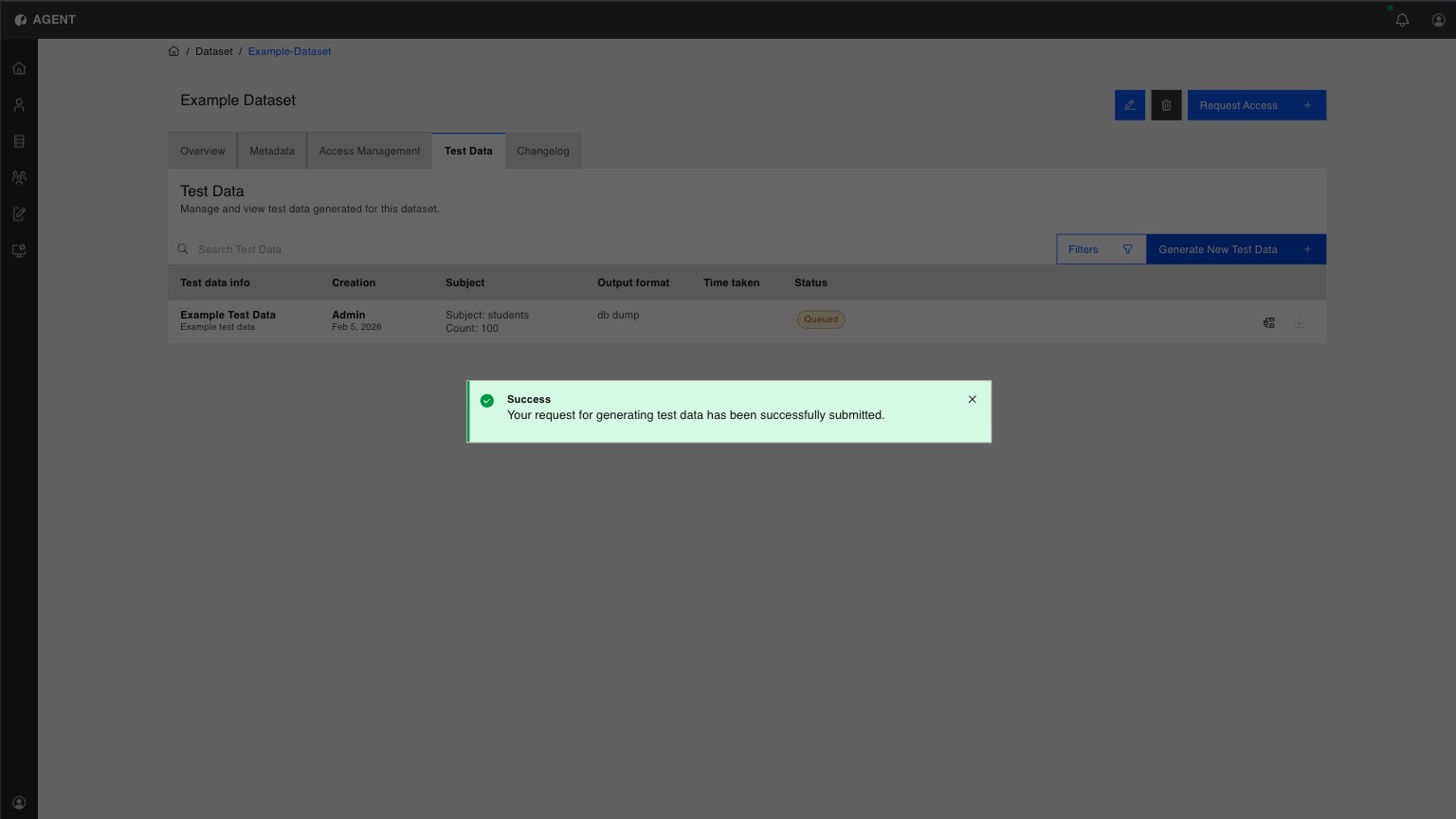
Once all fields are filled in, click Submit. Once the generation request is successfully submitted, you will be able to see the new Test Data entry in the table. The generation status of Test Data will be automatically updated.
Tip
To preview metadata used during a test data generation, click on Metadata Snapshot button on the right. It should open a pop-up window which displays the metadata snapshot associated with this test data.
7
Once the test data generation is complete, you will be able to download the generated test data by clicking on Download button on the right.