Open SQL Workbench and click Manage Drivers, bottom left. This is required only when connecting for the first time. For subsequent connections you can skip driver setup and connect directly to the server.
SQL Workbench
Overview
This guide explains how to connect to an AGENT SQL Server using SQL Workbench.
Requirements
1
SQL Workbench for your operating system, available from the official SQL Workbench website.
2
Your AGENT API key, available in the AGENT UI within your profile.
3
The Console URL of your AGENT server, available in the AGENT UI under the Configuration tab.
4
The AGENT SQL Client Driver, available to download in the AGENT UI under the Configuration tab.
Steps to connect
1
2
Click on the top left button to add a new connection profile.
3
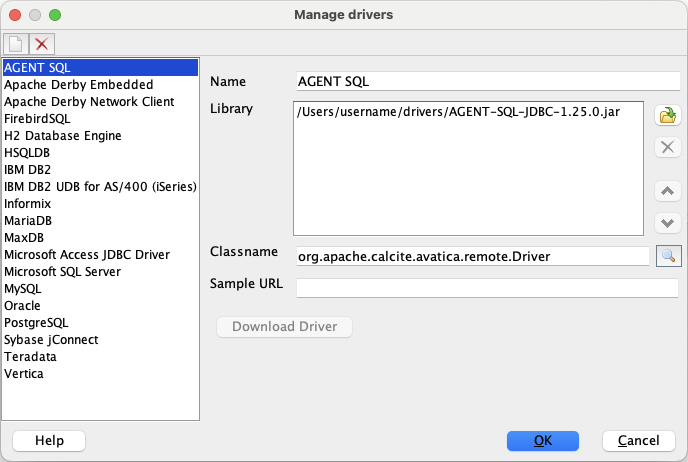
Give the new driver a name, for example as shown below. In the Library box, add the AGENT SQL Client Driver jar file.
4
Place the JDBC connection string in Sample Url (This url won't be used to connect; it will just be a sample)
5
The classname should have been automatically populated. If not, click on the search icon and it will add the classpath entry. Click OK to add the driver to SQL Workbench. Do not delete or move the files on your filesystem after you have added them.
6
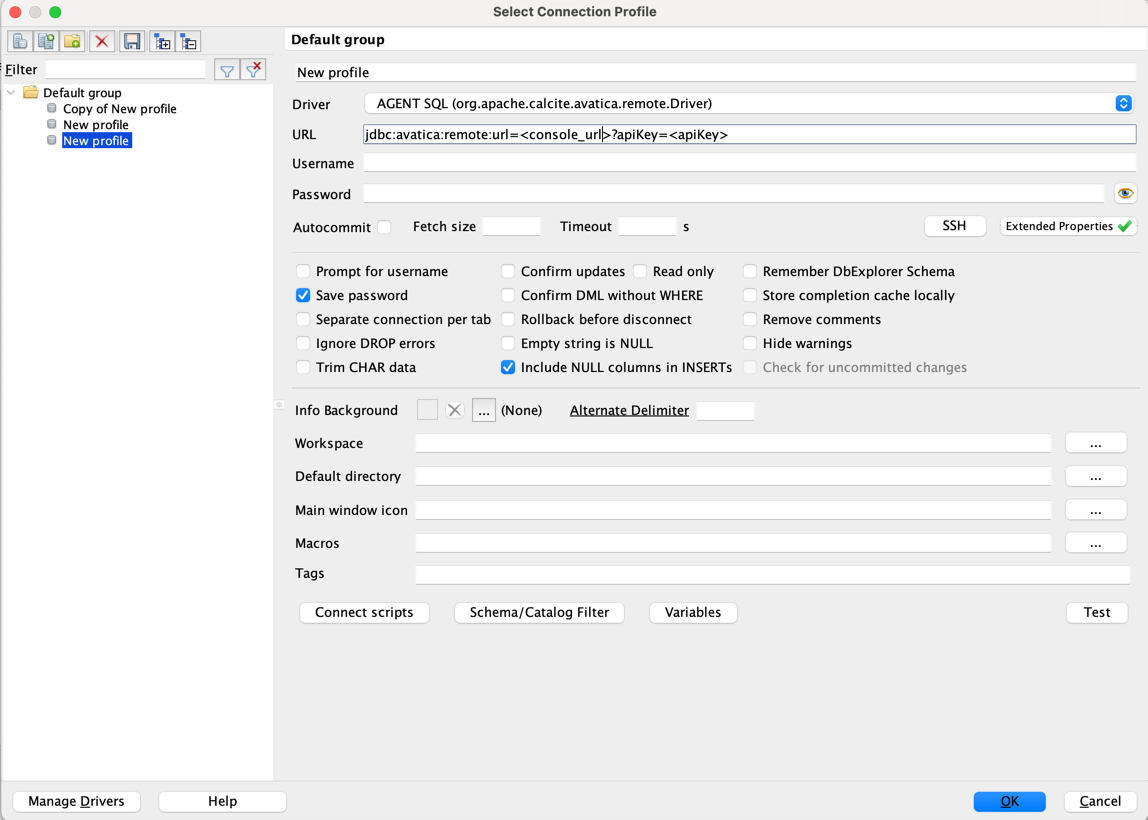
Now in the Connection Profile Window, enter the JDBC connection string into the URL box and click the Extended Properties button. Add a new property with the name
apiKey (note exact capitalisation) and enter your AGENT API key as value. If required, add other connection parameters like epsilon and delta with their respective values.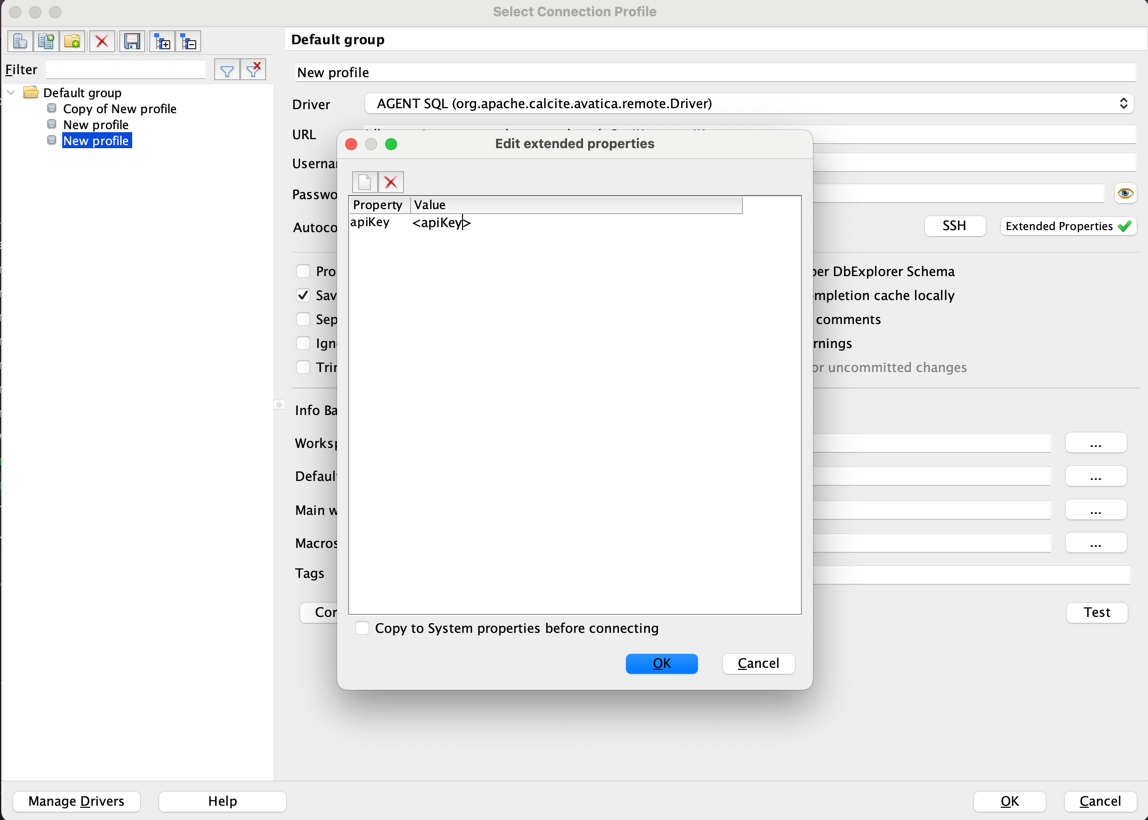
7
Click on OK to close the Edit extended properties window.
8
Back in the Select Connection Profile window, click Test and go to AGENT to approve the token request.
9
A popup window should appear confirming the connection was successful. Click OK to dismiss this popup window.
10
Name your connection profile by replacing New Profile with an appropriate name and click OK.
11
Check AGENT for another approval.
12
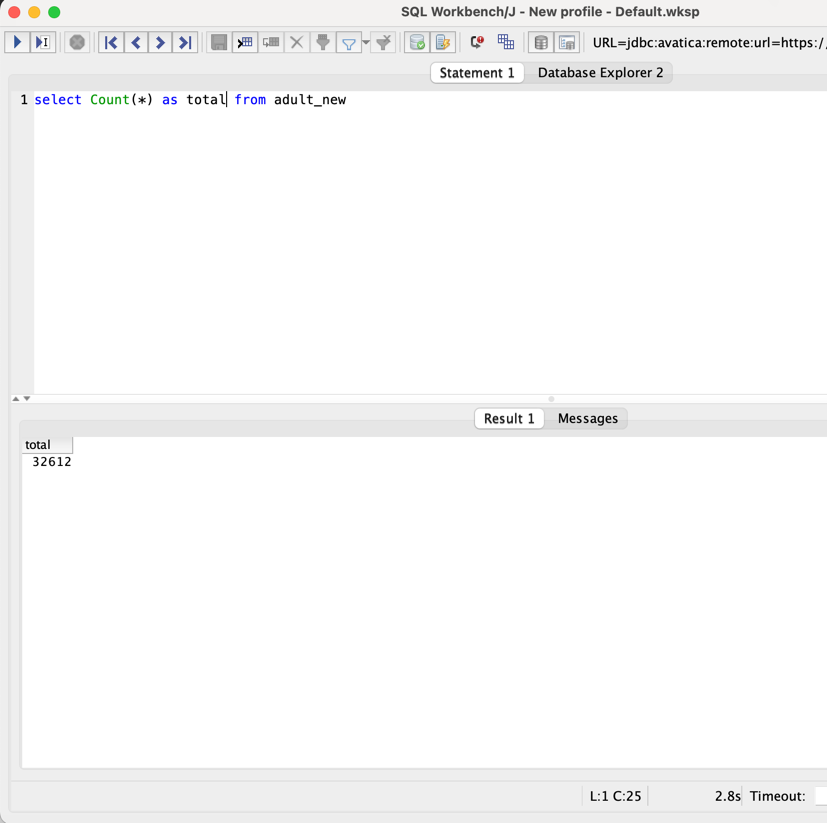
Now use SQL Workbench as normal to execute your queries.
Note
Subsequent token requests received within 1 minute from the same device would be auto-approved after some security checks. If connection initiation or query execution is taking longer than expected, check the AGENT UI once to see if there are any token requests that require approval.
Warning!
The session expires after 25 minutes of inactivity. You will need to go File menu -> Reconnect or restart SQL Workbench after you get a NoSuchConnection Error. Once reconnected, remember to look in AGENT for an authorisation request.