
Managing Requests

Overview

Requests are an essential aspect of AGENT. Users can ask for bigger Privacy Budgets and access to specific datasets through them. See the following sections for more details:

Accessing the Requests Menu

The Requests menu lets you see the status of all your requests and answer received ones. You can access it from the sidebar by clicking on Requests.
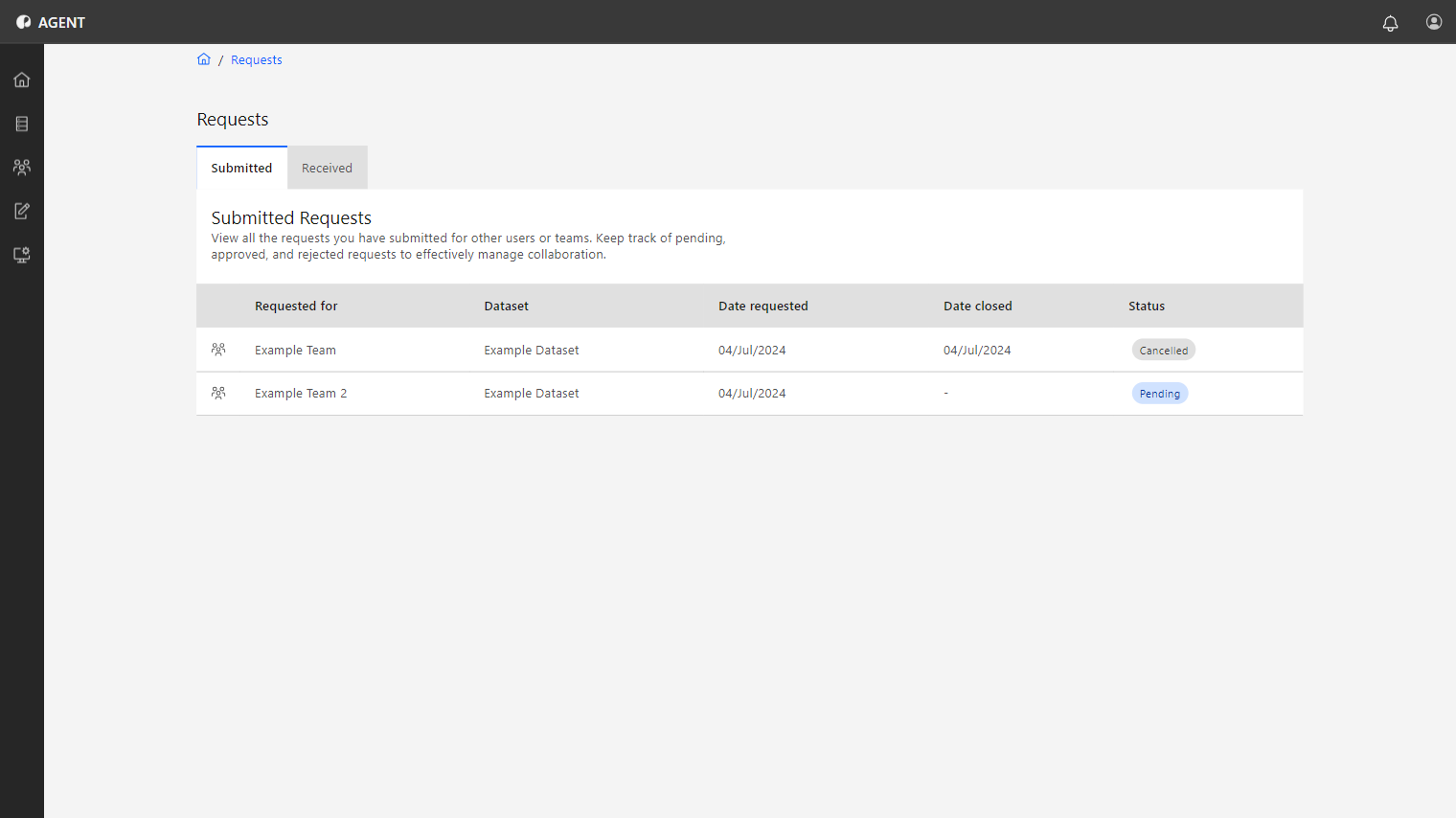
requests-menu

It will display the list of requests divided into two tabs:


Answering Requests

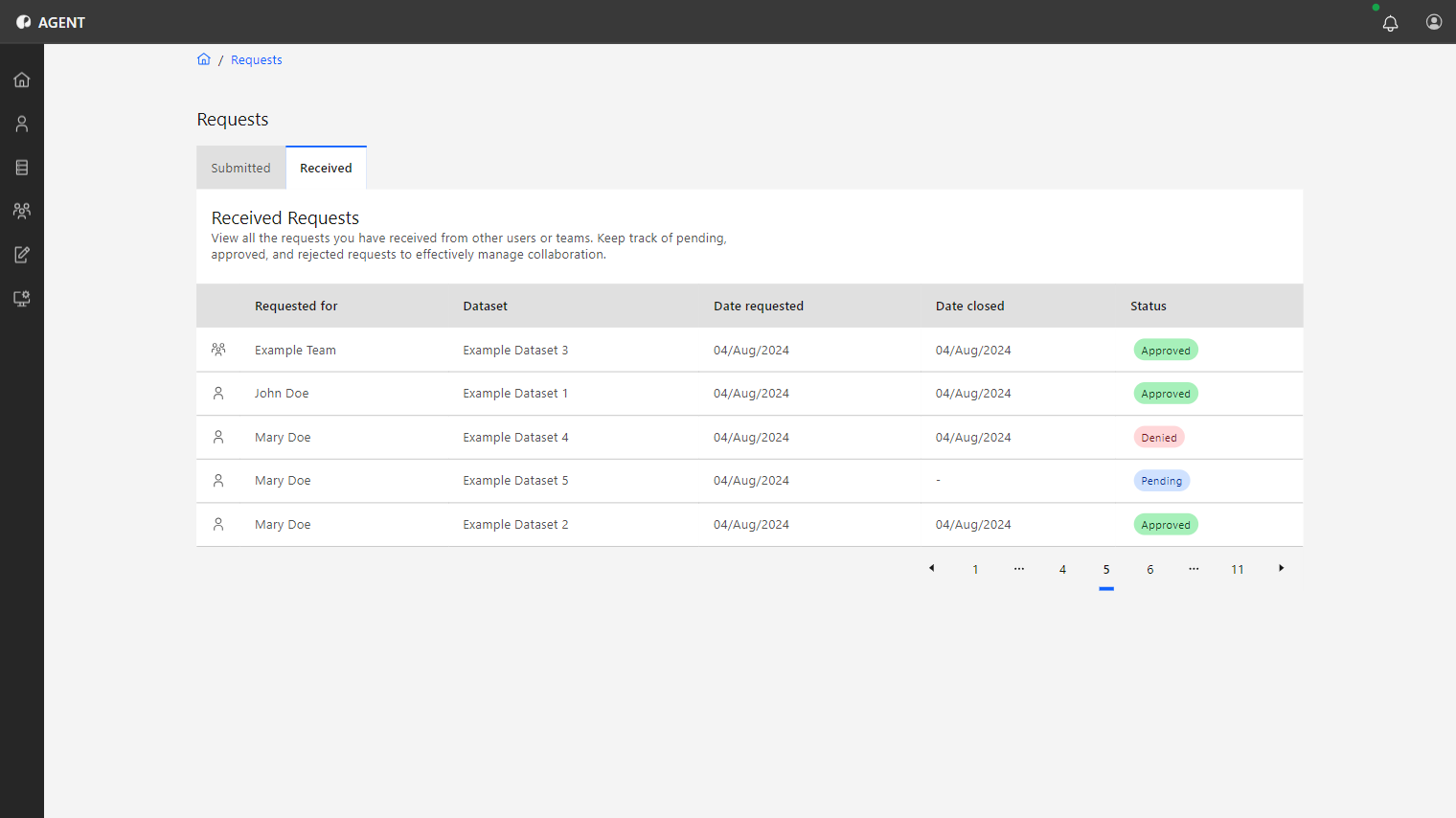
If the user is a Team or Dataset Admin, the Received tab will display a list of received requests. From there, they can be approved or denied. To do so, follow the steps below.
1
Access the Requests menu from the sidebar.
2
Access the Received tab.

requests-list

3
Choose a request with the Pending status from the list by clicking its arrow icon.
4
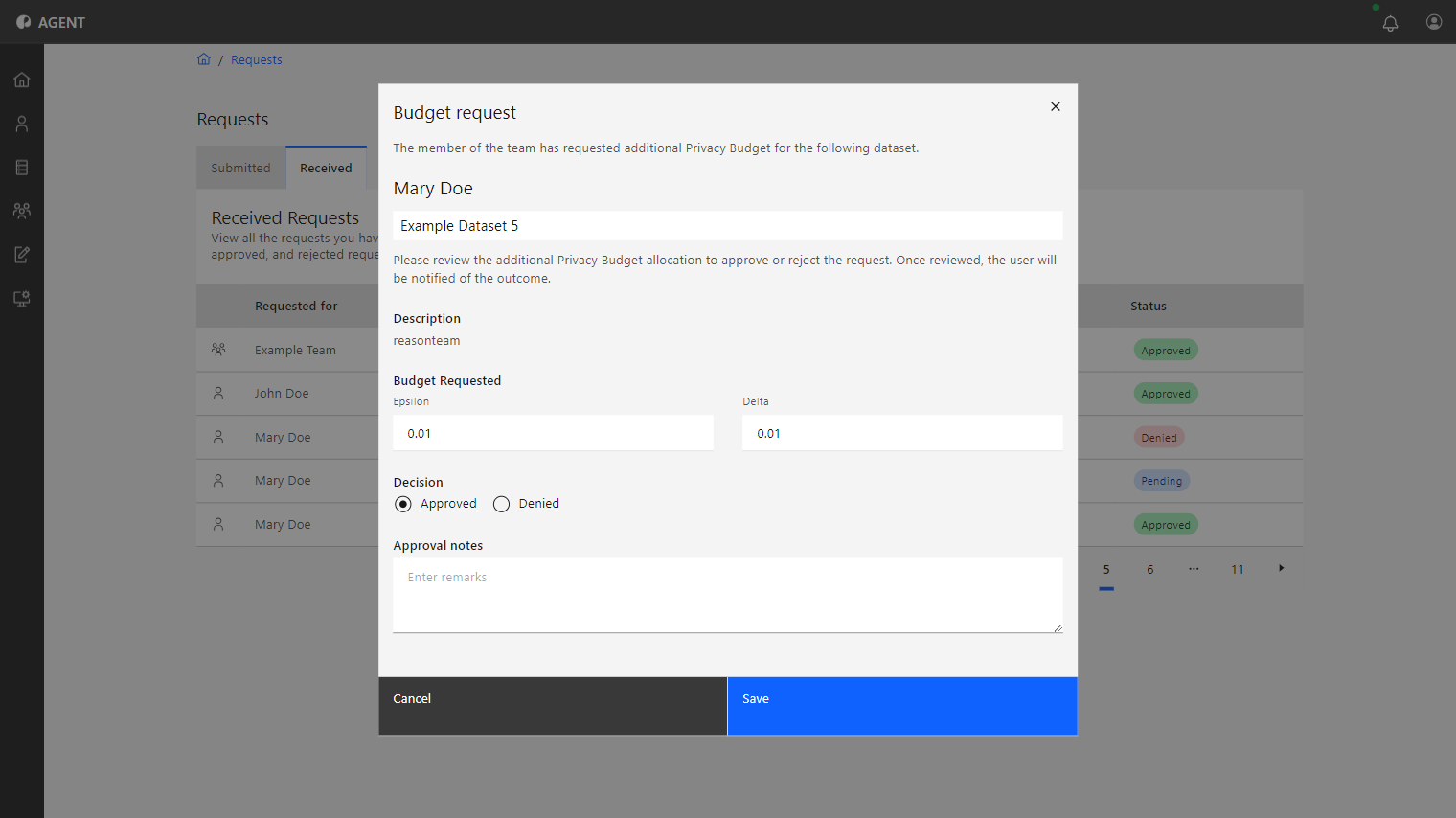
A pop-up window will appear, displaying the request details.

requests-answer

5
In the Decision section, check Approve or Reject
6
You can write a Note that will be displayed to the user who made the request.
7
Once you are finished, click Save.

The user will receive a notification confirming the Approval or Denial of their request.

Requesting Access to a Dataset

Users can request access to Datasets for themselves or on behalf of a Team. To learn how to do so, follow the steps below:
1
Access the Dataset menu from the sidebar.
2
Click on the dataset you wish to request access to.
3
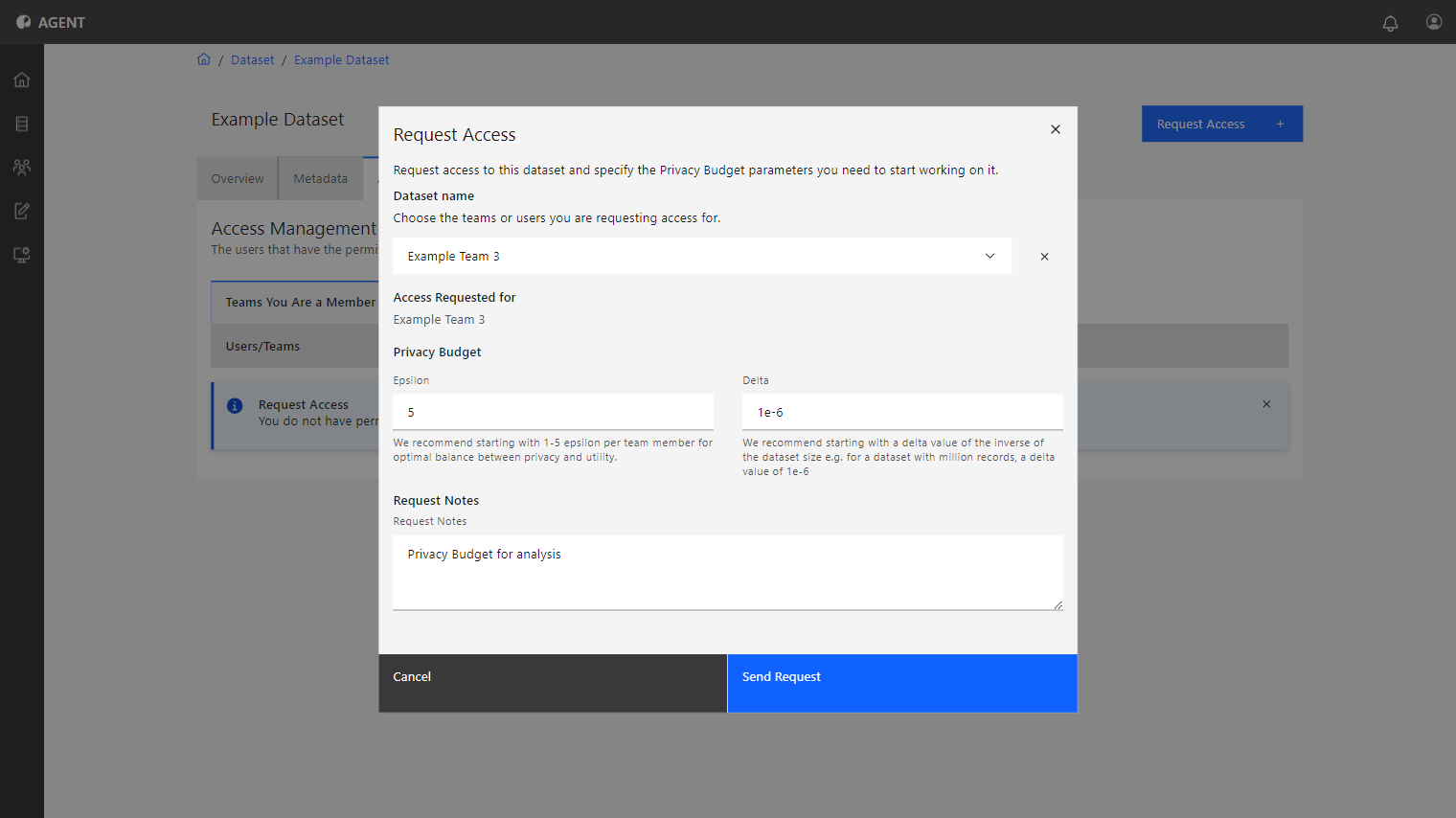
Click Request Access. A pop-up window will appear for the Request Creation.

requests-access

4
Choose the team or user for whom you are requesting access.
5
Input the desired Epsilon and Delta values for your Privacy Budget.
6
Write a request note.
7
When finished, click Send Request.

Now, the request is sent to the team admin. Once it is accepted or denied, you will receive a notification with the answer.

Requesting Privacy Budget for a Team

Team Admins can request a bigger Privacy Budget for their team if needed. The request is made from the Teams menu. To learn how to do so, follow the steps below:
1
Access the Teams menu from the sidebar.
2
Select the Team to edit by clicking on it.
3
Select the DatasetsTab on top.
4
Click on the Dataset to request a bigger budget.
5
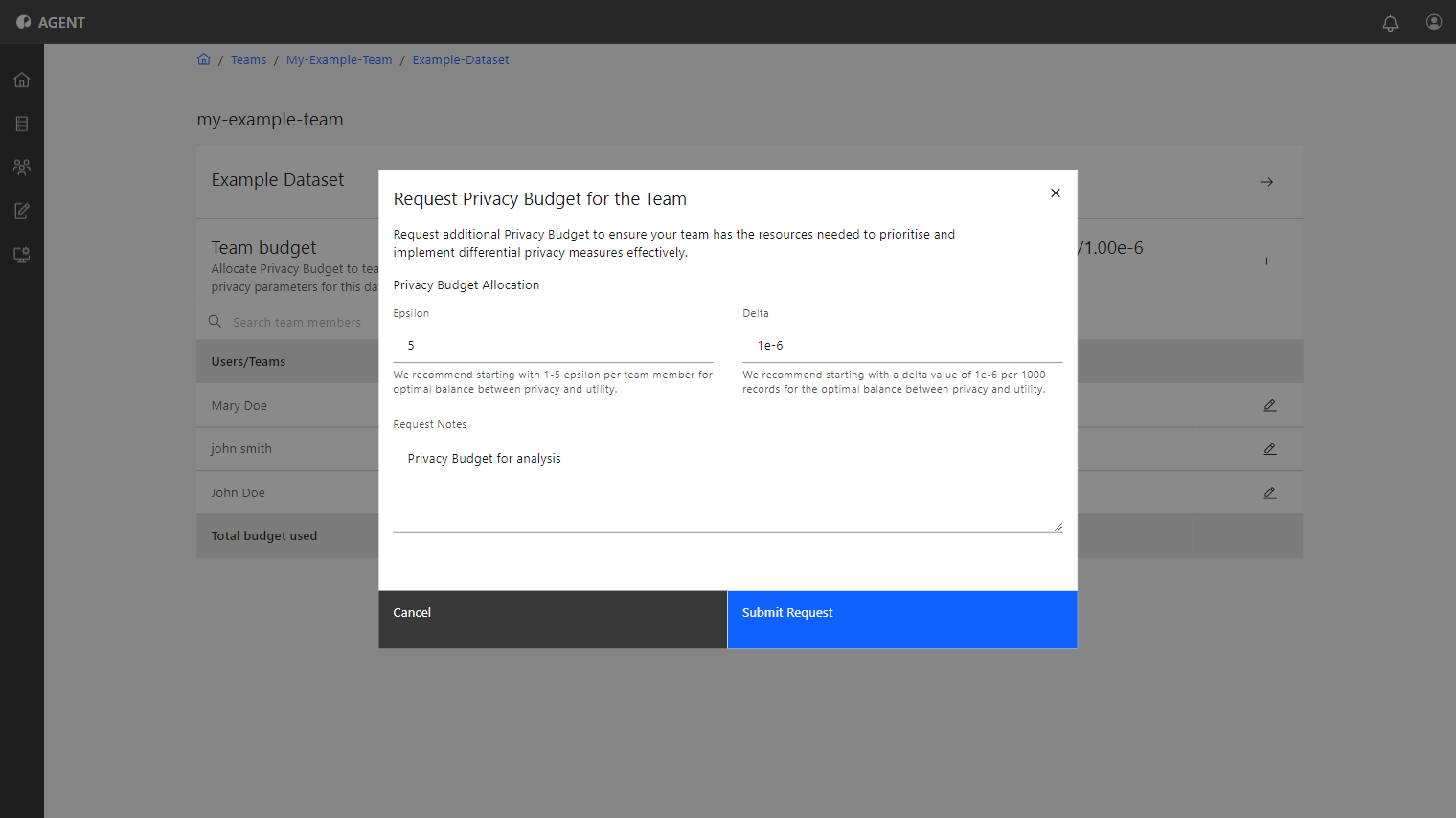
Click the plus icon next to the Epsilon and Delta values in the Team Privacy Budget section. A pop-up window will appear.

requests-access

6
Input the desired Epsilon and Delta values to request.
7
Write a Request Notethat the Dataset Admin will see when reading the request.
8
Click Submit Requestto finish and send the request.

Once the Dataset Admin approves or denies the request, you will receive a notification with the answer.