Access the Datasets tab in the sidebar.
Managing Datasets
Overview
Through the Datasets menu, Dataset Admins can:
Dataset Creation
To perform the actions described on this page, the user must have the Dataset Admin role, which they obtain by creating a dataset. See the Dataset Creation page for more information.
Access Management
Dataset Admins can manage the datasets that teams/users access to their datasets from the Access Management tab in the overview menu of a dataset.
Follow the steps below:
1
2
Choose the one to edit from the list of datasets and click it to access its overview.
3
Click the Admin Access Management tab on top.
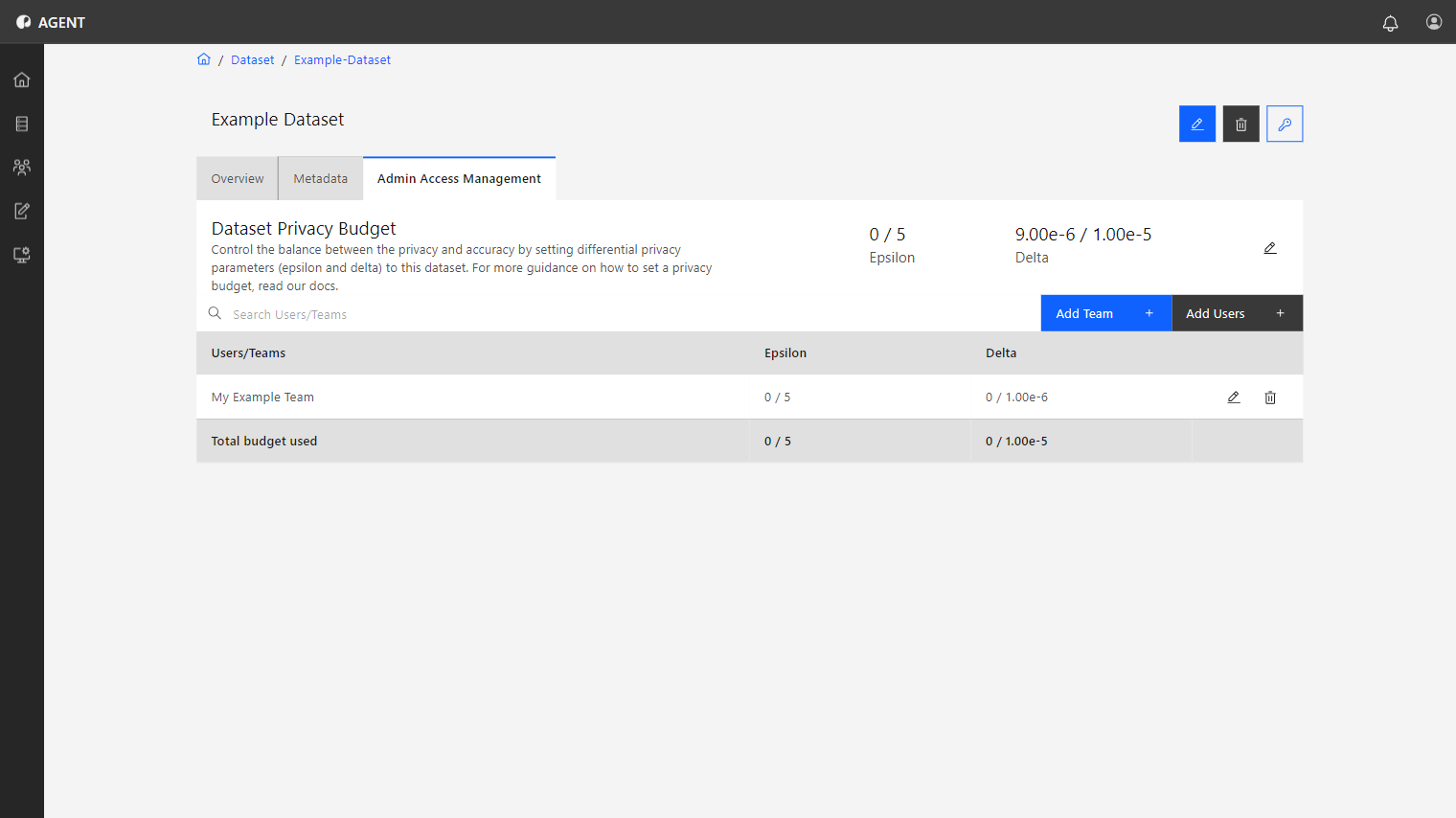
On the Access Management tab, Dataset Admins can see a list of the users and teams that consume their dataset and visualise the available Epsilon and Delta Privacy Budget parameters.
Admins can perform the following actions on this menu:
Adding Teams/Users to the Dataset
Adding Teams/Users to the Dataset
Admins can add a team or user to their dataset in the following way:
1
Click the Add Team or Add Users button. A pop-up window will appear.
2
Choose the team or user to be added.
3
Allocate their Epsilon and Delta Privacy Budget.
Allocate the Privacy Budget accordingly
It is essential to allocate a Privacy Budget according to the needs of the user or team to avoid unnecessary allocation. Read more about Privacy Budget allocation on this page.
4
Click Save to finish.
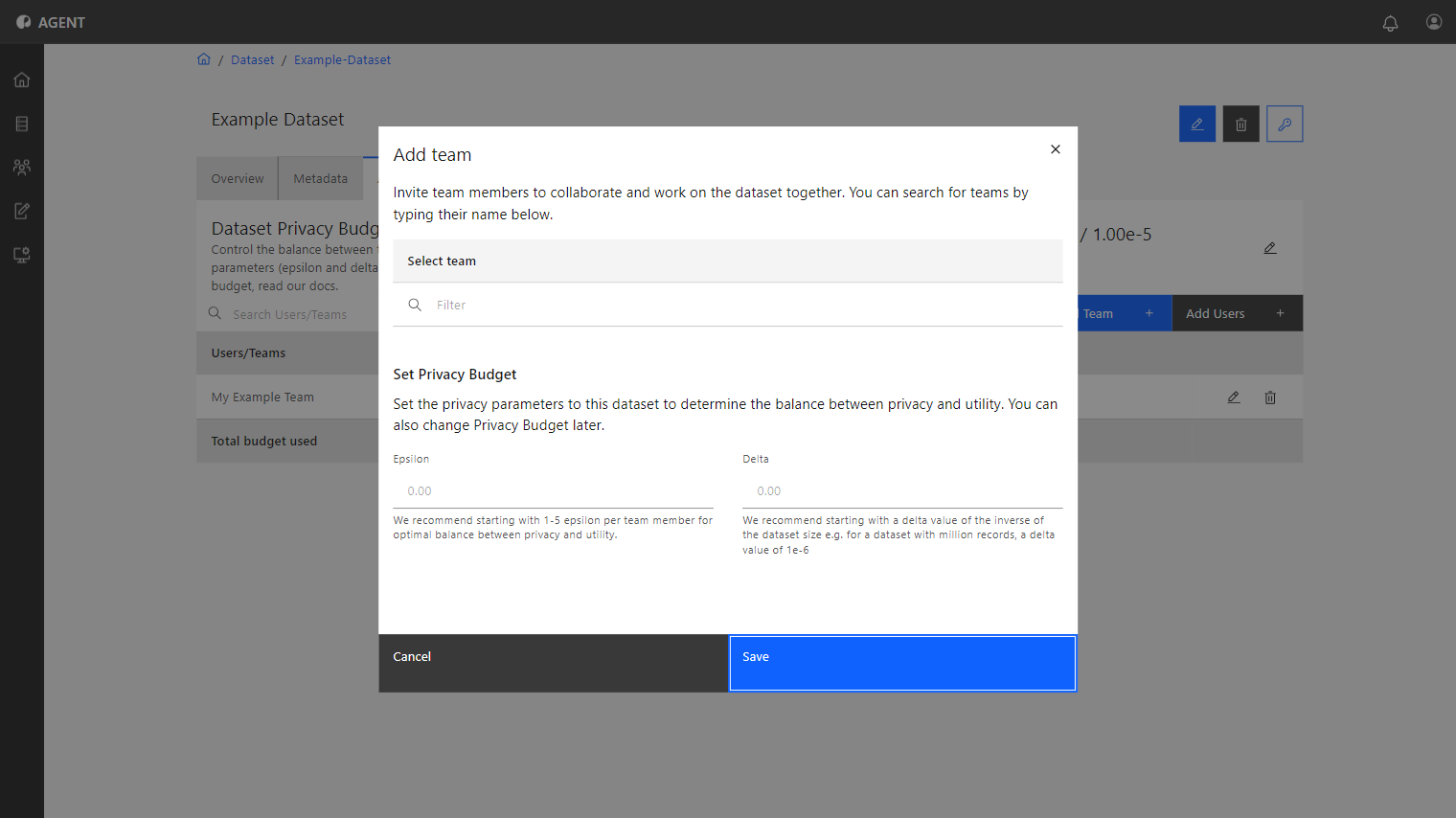
The team or user added can now use this dataset and spend their assigned Epsilon and Delta Privacy Budgets.
Removing Teams or Users from the Dataset
Removing Teams or Users from the Dataset
Admins can also remove a team or user from their dataset in the following way:
1
You can select multiple teams or users by checking the box next to its name.
2
Click the Delete (Trash can icon) button.
3
A pop-up window will appear requesting confirmation. Click Remove.
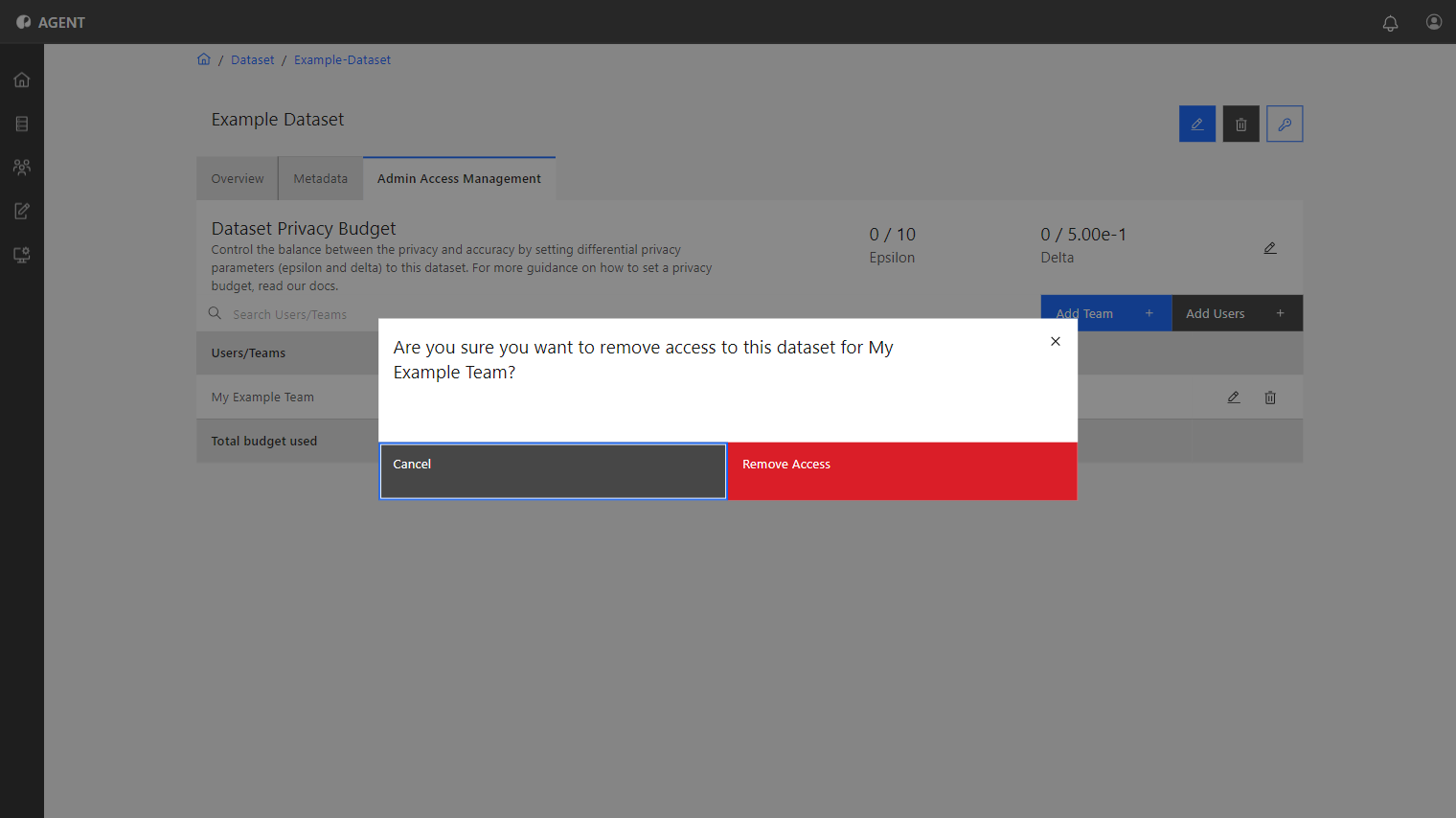
The selected consumers are removed from the dataset and no longer available in the dataset users and teams list.
Managing the Lifetime Privacy Budget
Managing the Lifetime Privacy Budget
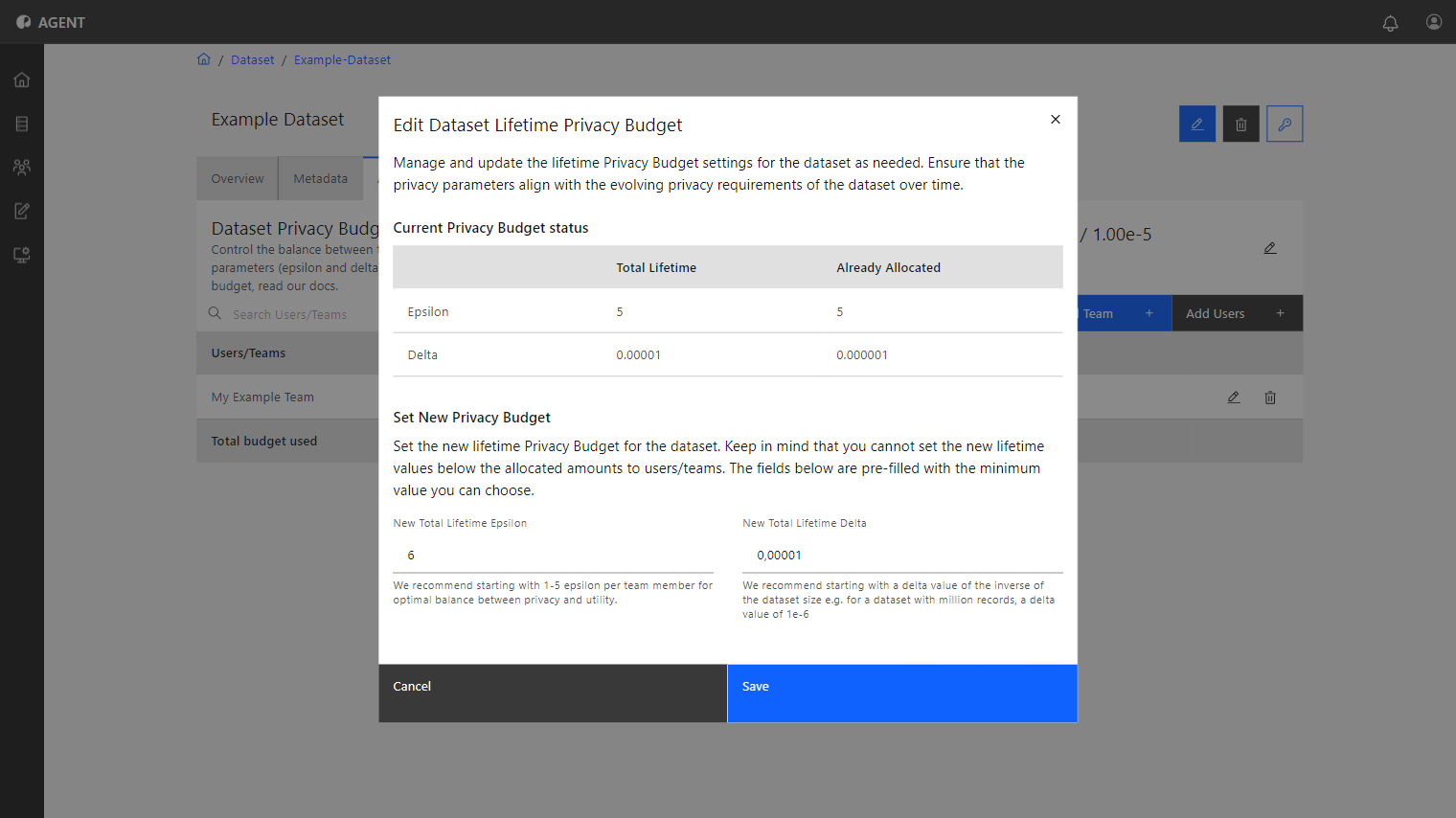
The lifetime Privacy Budget is the total Privacy Budget of the dataset available to be allocated between teams and users. Its value can be verified in the Dataset Privacy Budget section above the list. It can be changed in the following way:
1
Click the Edit (Pen icon) button next to the Dataset Privacy Budget values.
2
In the pop-up window, change the Delta and Epsilon values.
Warning!
You cannot reduce the lifetime Privacy Budget to a lower value than the allocated one.
3
Click Save.
The new available Privacy Budget will be displayed, and admins can allocate it to teams or users.
Managing Team's and User's Privacy Budgets
Managing Team's and User's Privacy Budgets
Each team and user has a Privacy Budget for their Epsilon and Delta. As seen in the previous sections, when adding teams or users to the datasets, the Admin allocates this Privacy Budget to them.
They can also edit this allocation in the following way:
1
On the chosen user or team’s row, click the Edit (Pen icon) button.
2
A pop-up window will appear.
- The Current Privacy Budget status section displays the user or team's Total Allocated and Already Spent amounts of Epsilon and Delta.
- The New Privacy Budget allocation section allows you to input new Epsilon and Delta values for the team or user.
Warning!
You cannot reduce the team’s Privacy Budget to a lower value than the allocated one.
3
Click Save.
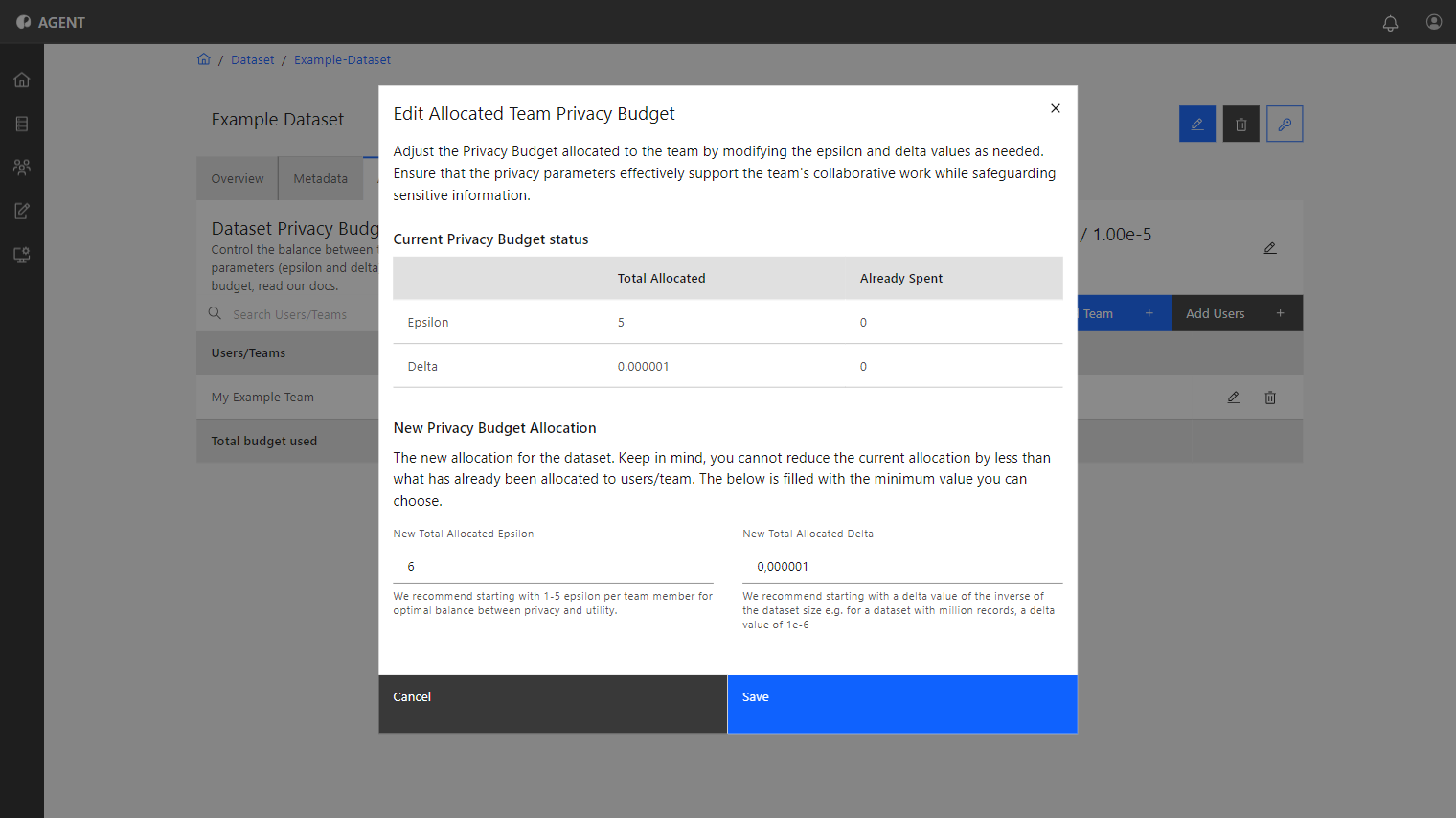
The new available Privacy Budget will be displayed in the list concerning the Epsilon and Delta columns of the consumer.
Editing a Dataset
To edit a Dataset, follow the steps below:
1
Access the Datasets tab in the sidebar.
2
Choose the one to edit from the list of datasets and click it to access its overview.
3
In the overview menu, click the Edit (Blue pen icon) button.
4
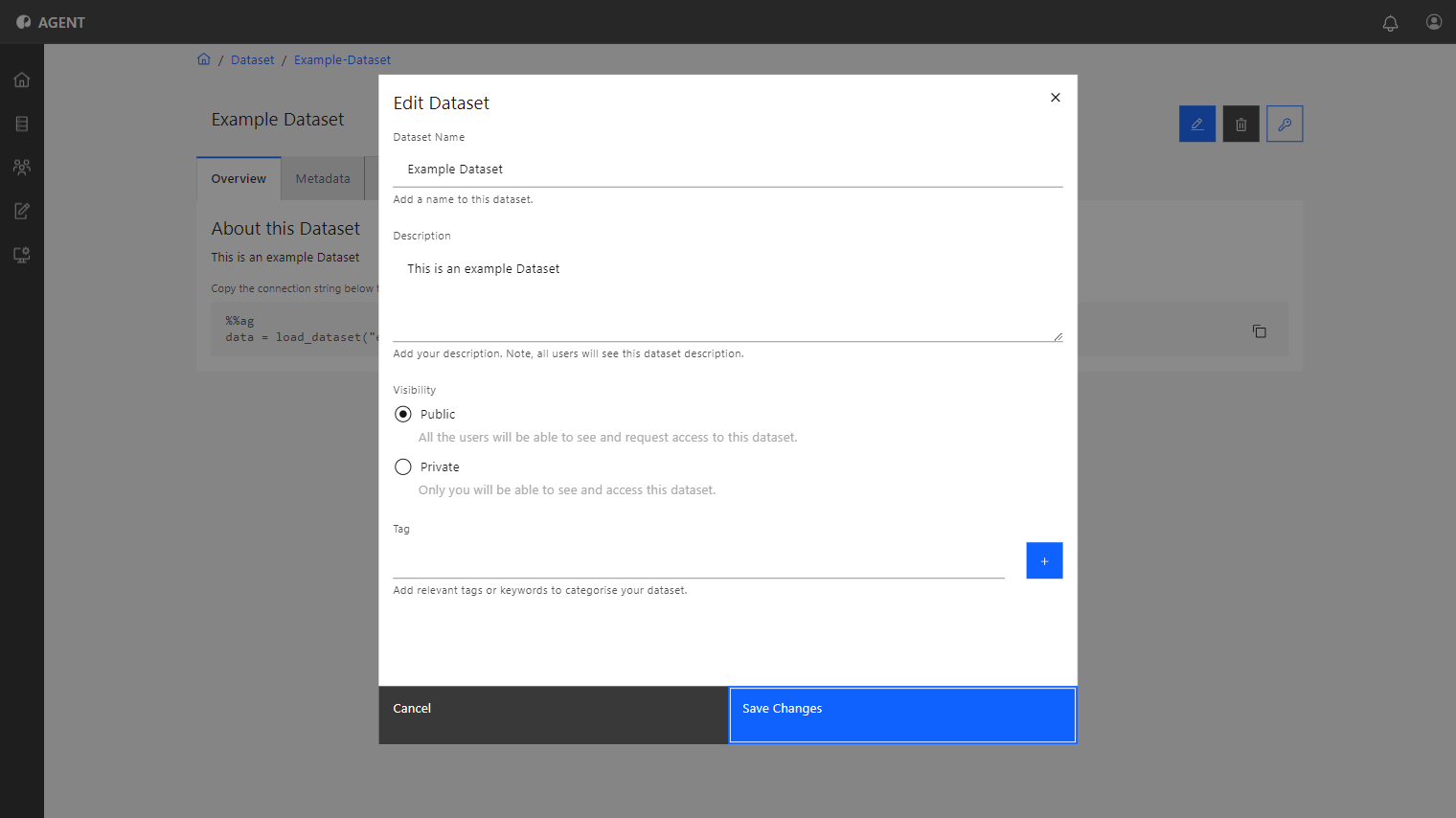
A pop-up window will be displayed, dataset admins can edit the following fields.
- Dataset Name: The name to be displayed.
- Description: A description of the dataset.
- Tags: The topic tags associated with the dataset allow users to check information about the dataset quickly.
- Visibility: Define whether the dataset is public or private.
5
Click the Save Changes button to save the changes and finish the editing process.
Deleting a Dataset
To delete a dataset, follow the steps below:
1
Access the Datasets tab in the sidebar.
2
Choose the one to delete from the list of datasets and click it to access its overview.
3
Click the Delete (trash can icon) button.
4
A pop-up window will appear requesting confirmation. Click Delete.
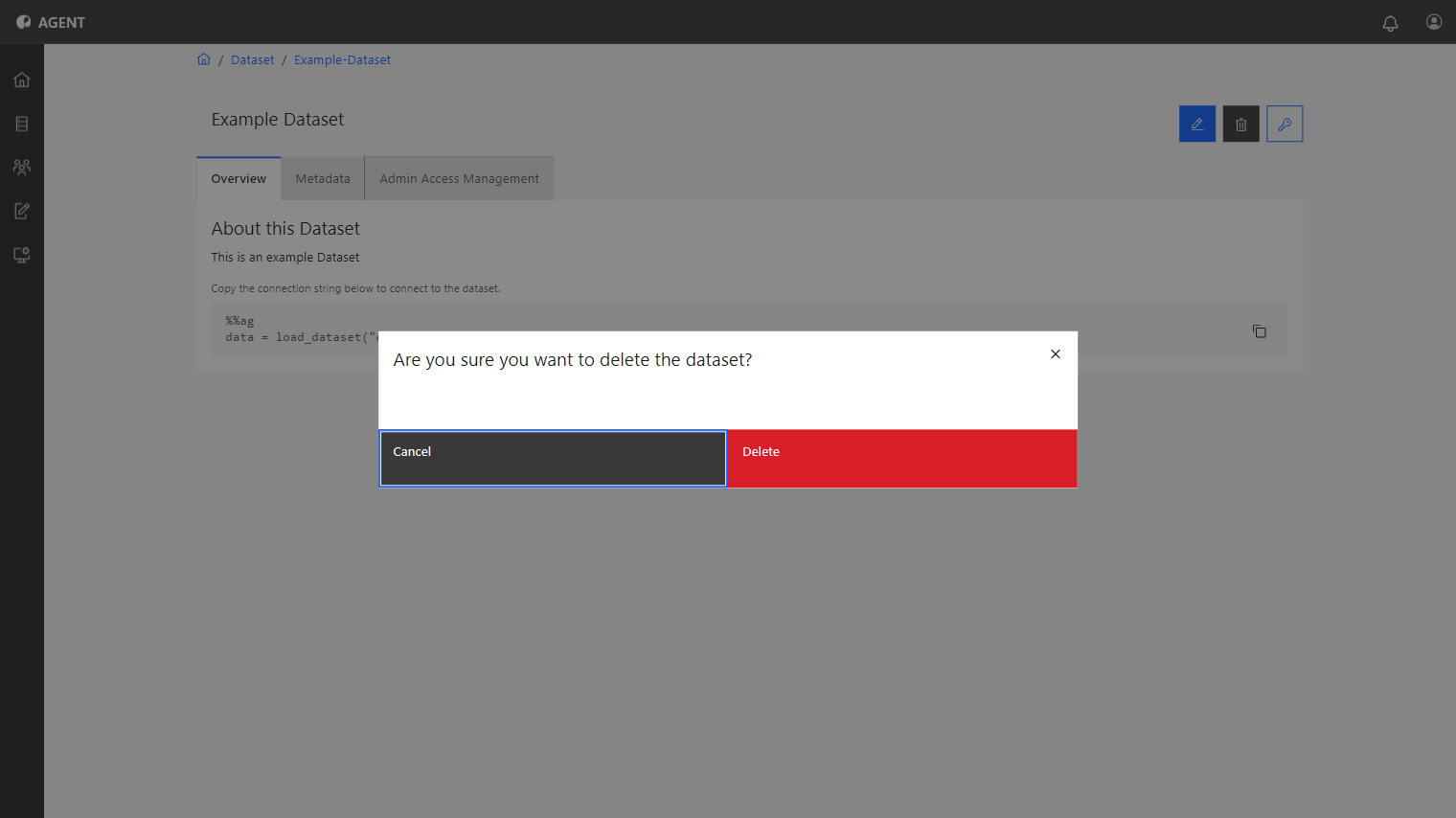
The dataset has been deleted and is no longer available in the dataset list.