First, access the Teams menu from the sidebar.
Managing Teams
Overview
Through the Teams menu, Team Admins can edit and delete a team, manage team members and privacy budget. See the following sections for more details:
Team creation
Before performing any of these actions, the user must create a Team. Check the Team Creation page to learn how to do so.
Edit a Team
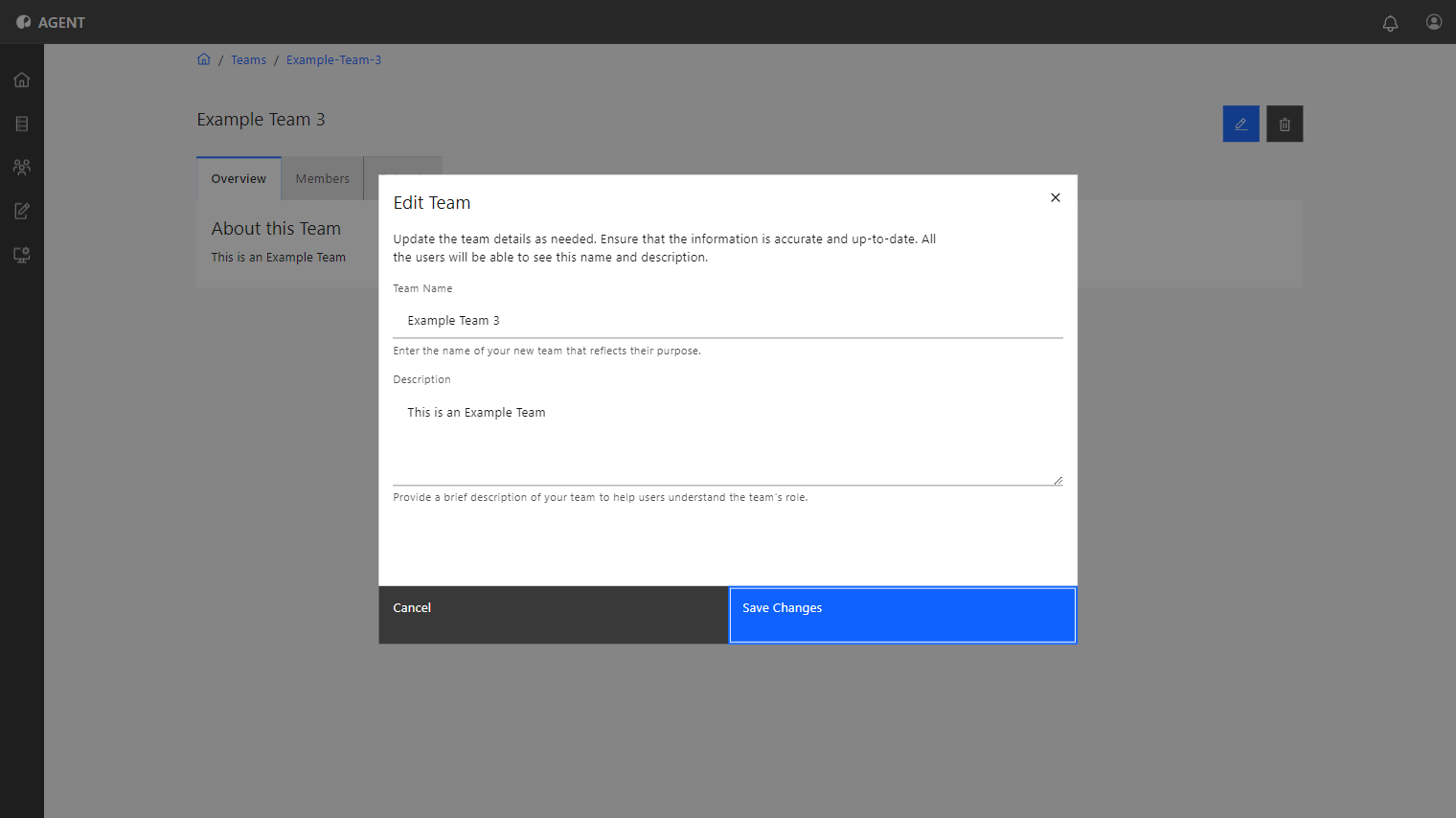
Team admins can change the name and description of a team. Follow the steps to do so:
1
2
Select the Team to edit or delete by clicking on it.
3
Click the Edit (Blue pen icon) button.
4
Make the desired changes in the pop-up window.
5
Click Save to finish and save the changes.
Delete a Team
Team Admins can delete a team if needed. Follow the steps to do so:
1
First, access the Teams menu from the sidebar.
2
Select the Team to edit or delete by clicking on it.
3
Click the Delete (Trash can icon) button.
4
Confirm the action in the pop-up window by clicking Delete.
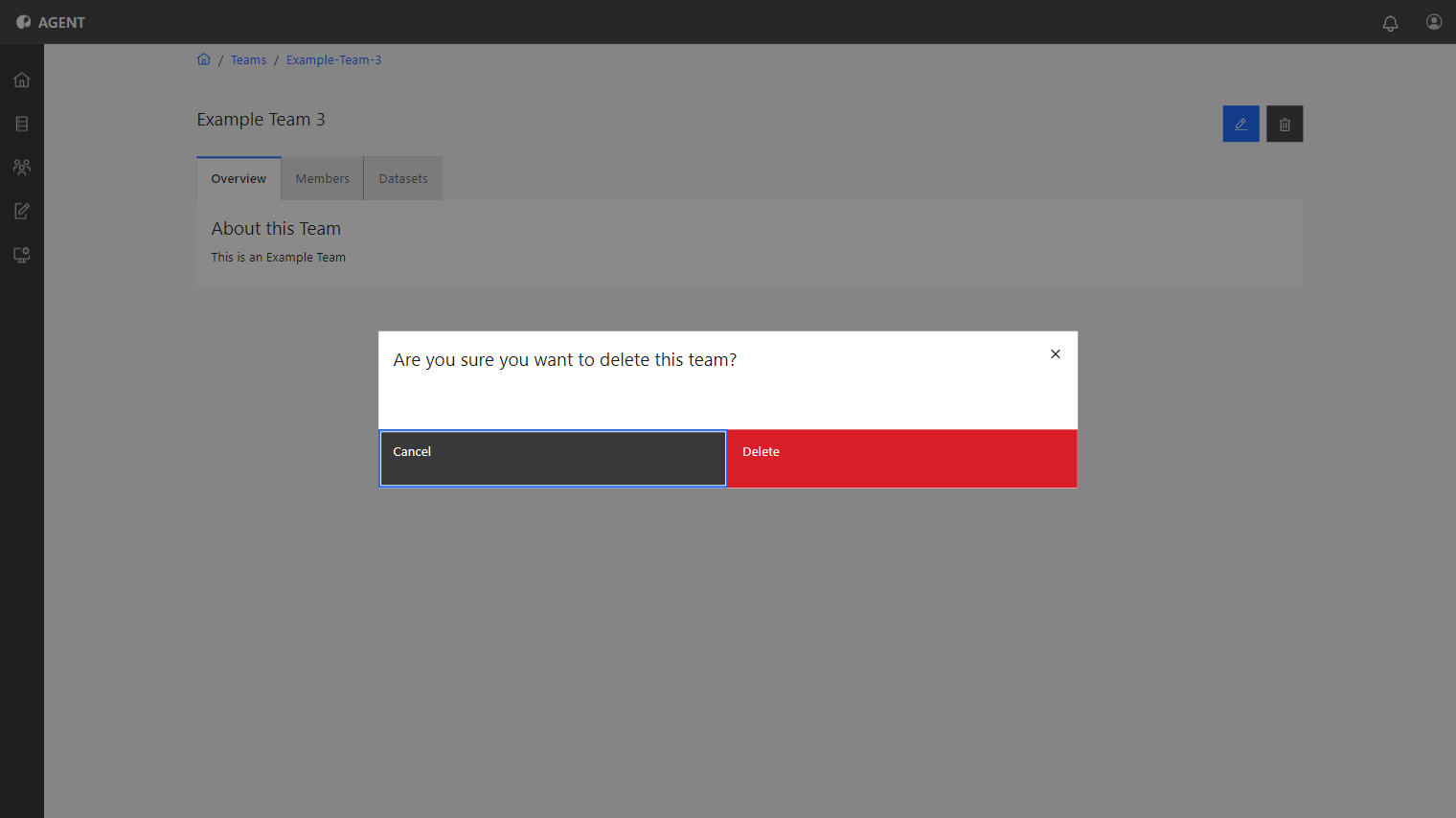
The team has been deleted and won't be available on the team list anymore.
Managing Team Members
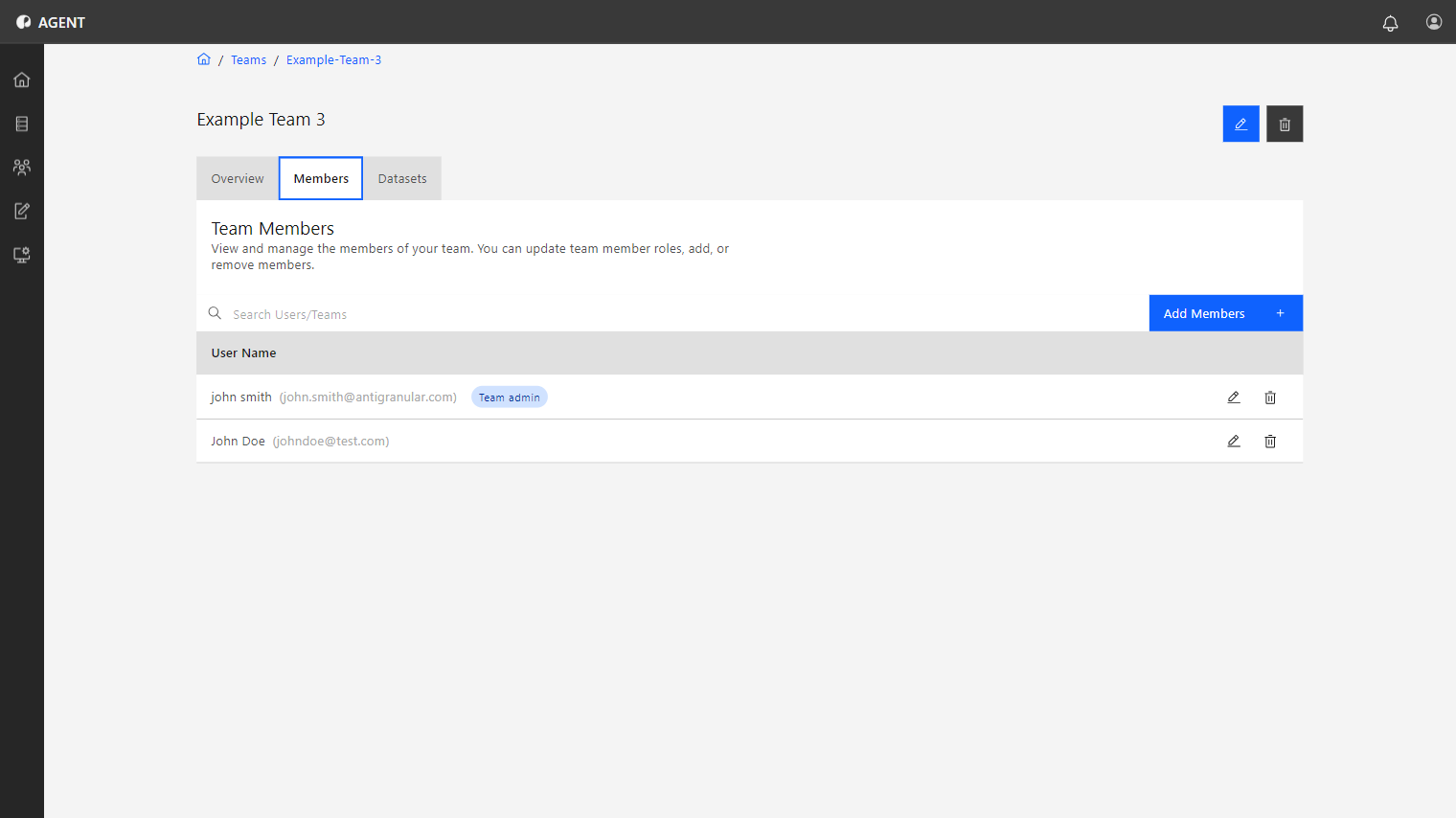
The Members tab displays the list of users currently in the Team.
To access the Members tab, follow these steps:
1
Access the Teams menu from the sidebar.
2
Select the Team to edit by clicking on it.
3
Select the Members Tab on top.
Add New Members
Add New Members
To add a new member to the team, click the Add Members button and choose a user from the dropdown list.
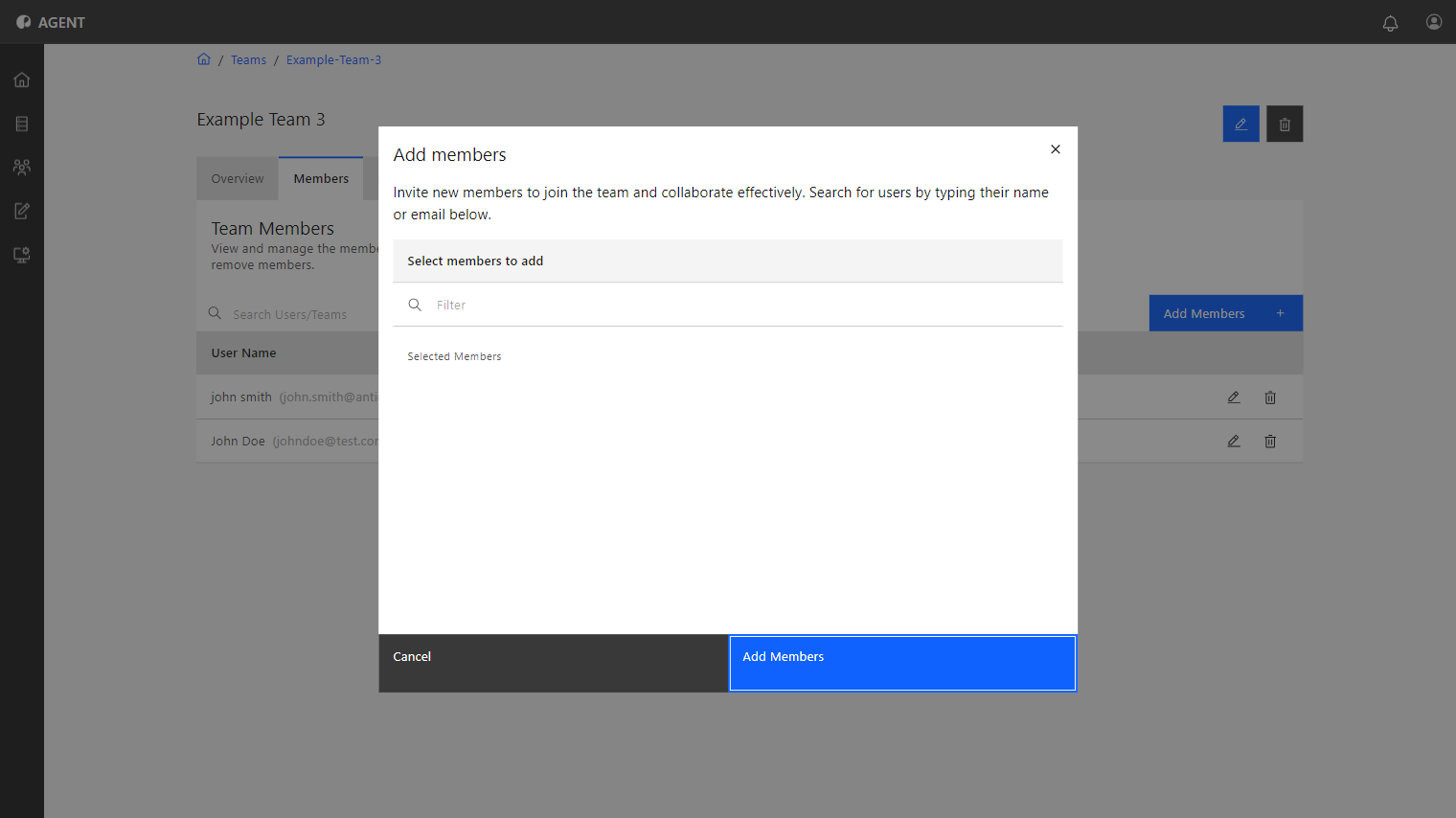
Click Send after selecting the user, he will receive an invite to join the team.
Remove Members
Remove Members
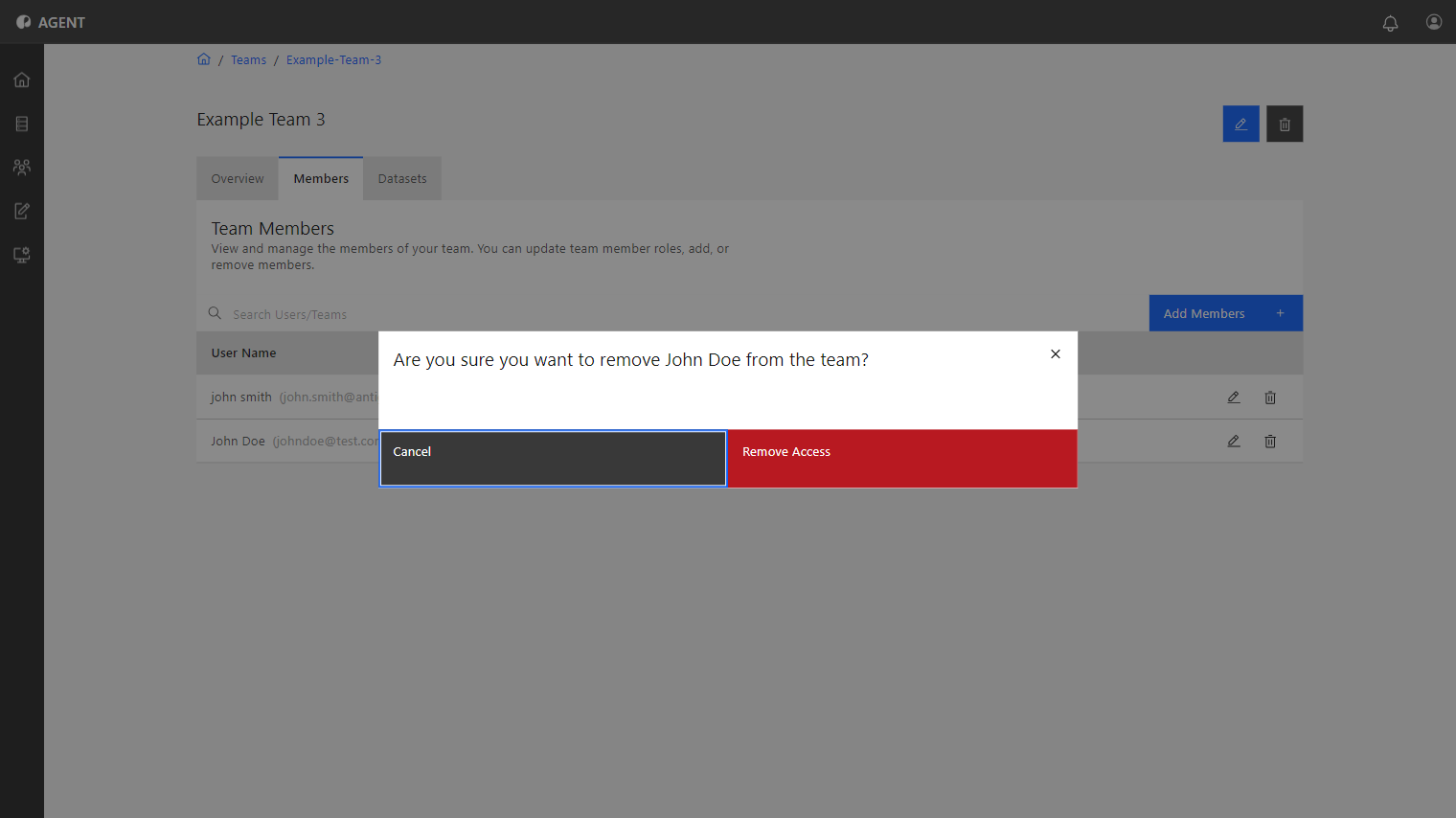
To remove a current team member, click the Delete (trash can icon) button and confirm the action in the pop-up window.
Edit a Member’s Role
Edit a Member’s Role
Team admins can also edit the role of a member to that of Team Admin, giving them the corresponding permission to manage the team.
To do so, click the Edit (Pen icon) button on the team member to choose the role to assign to it.
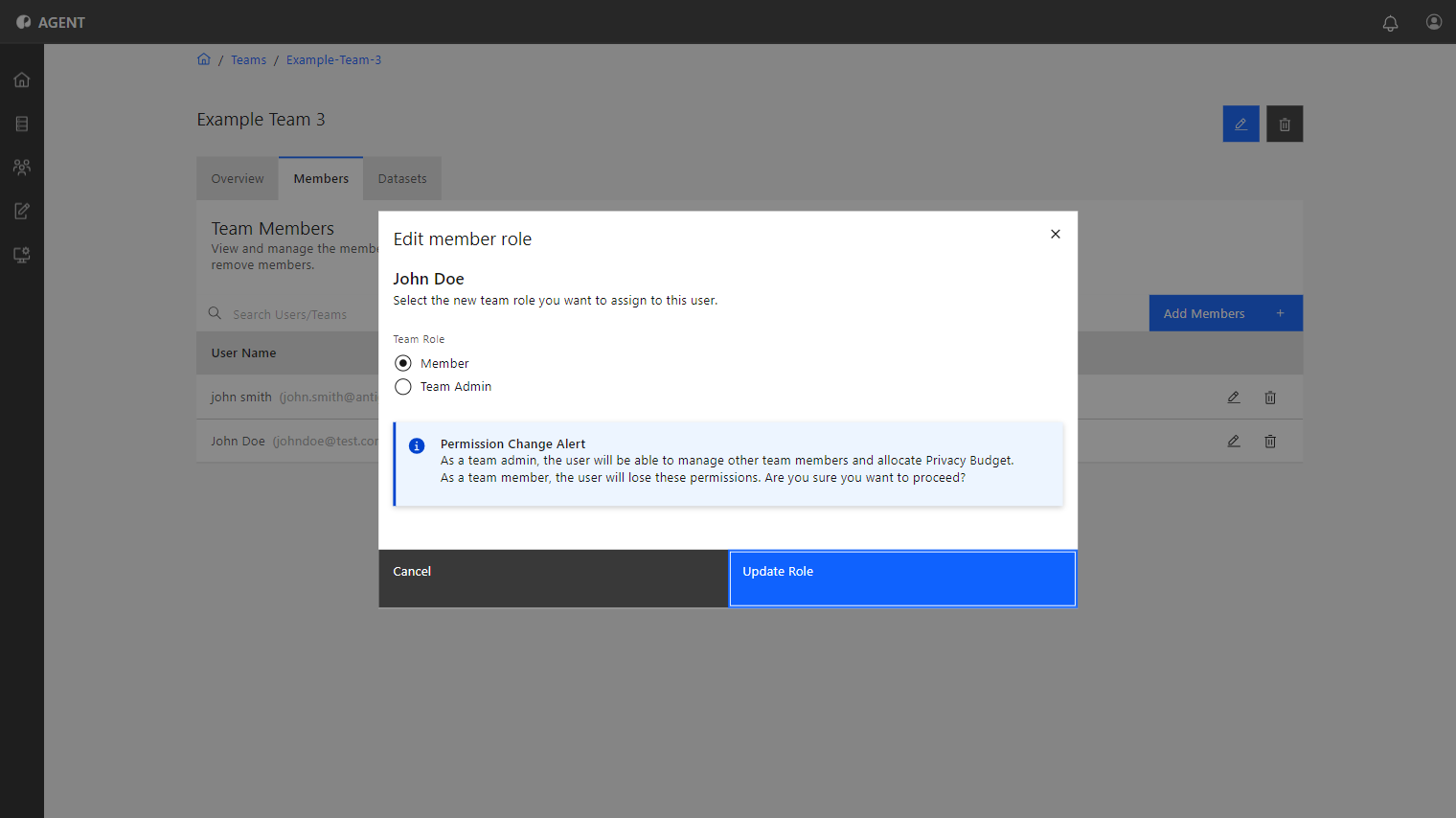
Click Save when finished to save the changes.
Managing the Team’s Privacy Budget
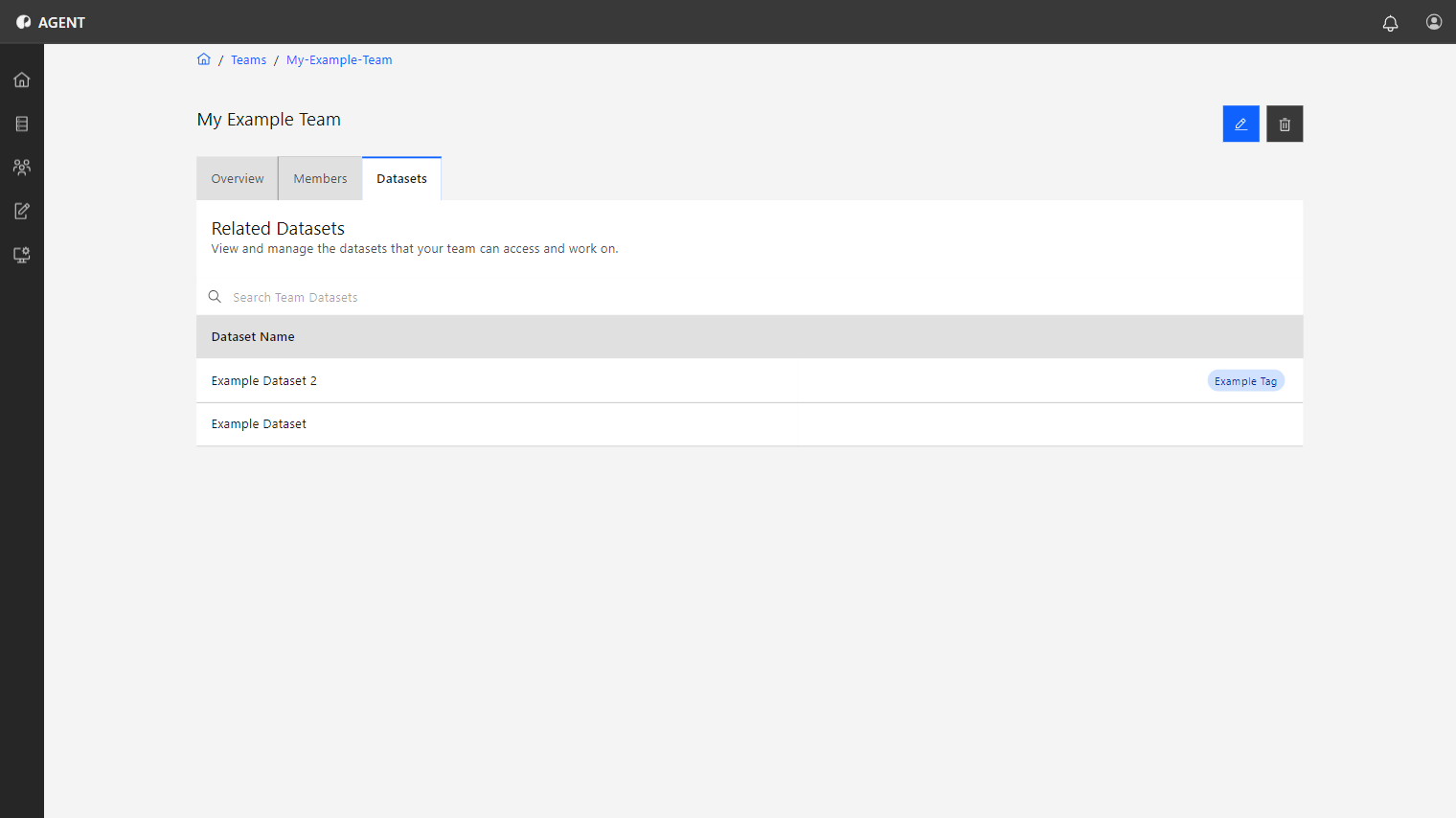
The Datasets tab displays a list of the datasets associated with the team.
To access the Datasets tab, follow these steps:
1
Access the Teams menu from the sidebar.
2
Select the Team to edit by clicking on it.
3
Select the Datasets Tab on top.
Editing Member’s Privacy Budget
Editing Member’s Privacy Budget
To edit a team member's Privacy Budget, follow these steps:
1
While on the Datasets tab, select the dataset to edit by clicking on it.
2
The list of Members will be displayed. Click the Edit (Pen icon) button on the desired member.
3
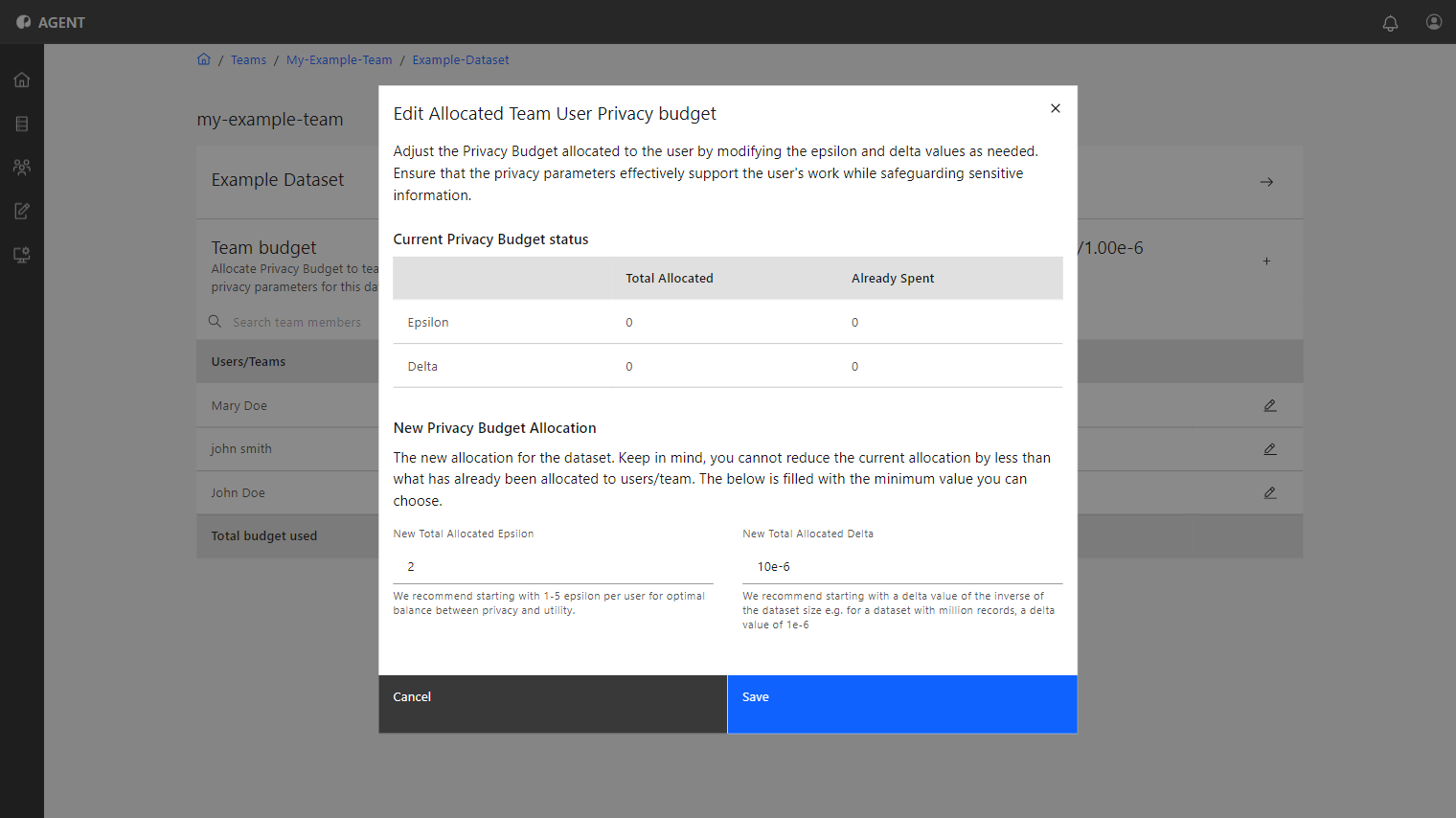
A pop-up window will appear. In it, change the member's total Epsilon and Delta allocation values. The new allocation cannot be less than what has been allocated to users, the Epsilon and Delta fields will have the minimum values to be chosen.
4
Click Save to finish.
This member will now have the new Epsilon and Delta values allocated to his Privacy Budget.
Making a Privacy Budget Request
Making a Privacy Budget Request
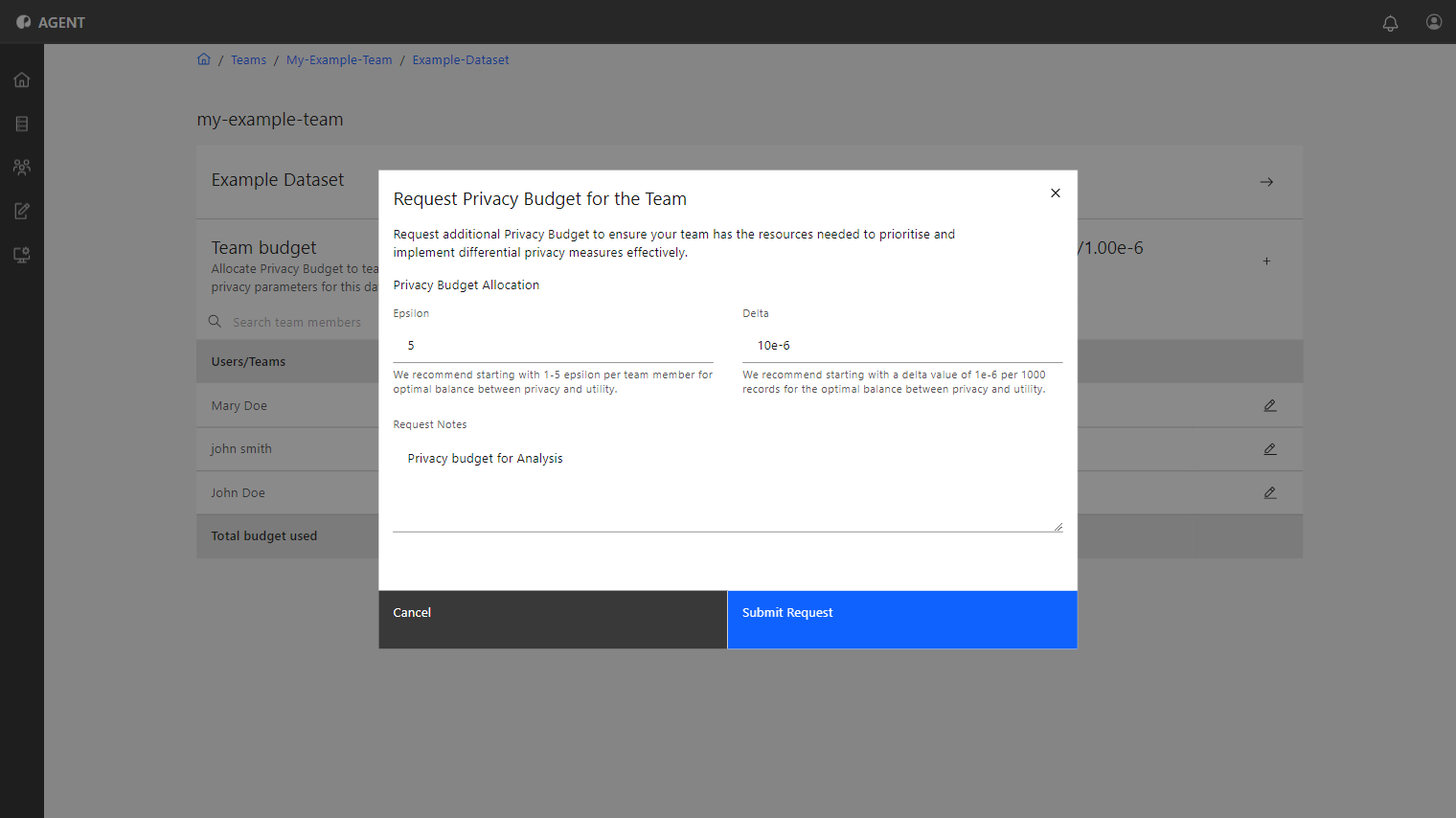
Team Admins can request a bigger Privacy Budget for their team if needed. The request is made to the Dataset admin, who will approve or reject it.
To make a Privacy Budget request, follow the steps below:
1
Select the dataset that needs more privacy budget on the Datasets tab by clicking on it.
2
Click the plus icon next to the Epsilon and Delta values in the Team Budget section.
3
A pop-up window will appear. In it, input the desired Epsilon and Delta values to request.
4
Input a Request Note that the Dataset Admin will see when reading the request.
5
Click Submit Request to finish and send the request.
Once the request is approved or denied, you will receive a notification.