Follow this guide to install the drivers. For example, if you are on a Mac platform, put the driver jar file in ~/Library/Tableau/Drivers.
Tableau (beta)
Overview
This guide explains how to connect to an AGENT SQL Server using Tableau.
Requirements
1
Get Tableau Desktop for your operating system from the official Tableau website.
2
Your AGENT API key, available in the AGENT UI within your profile.
3
The Console URL of your AGENT server, available in the AGENT UI under the Configuration tab.
4
The AGENT SQL Client Driver, available to download in the AGENT UI under the Configuration tab.
5
The AGENT Tableau connector file
agent-sql-v0.0.1.taco, available from the Oblivious team.Installation
Before connecting for the first time, you need to set up the driver and the connector file. This is used by Tableau to connect to the AGENT SQL server.
1
2
Follow this guide to install the connector file. If you are on a Mac, put the .taco file in ~/Documents/My Tableau Repository/Connectors.
3
Restart Tableau Desktop. This will add an entry
AGENT SQL by Oblivious as shown.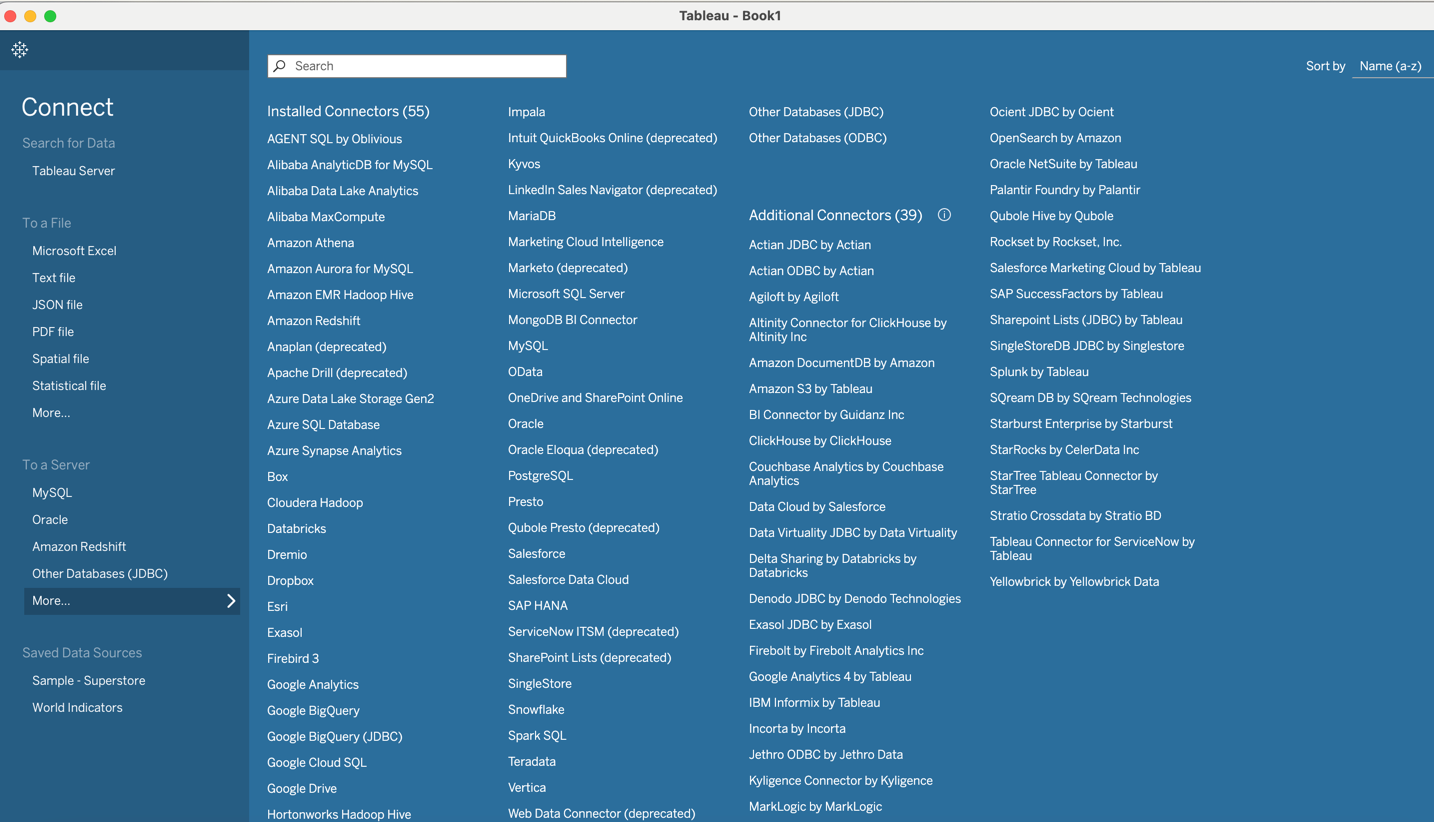
Steps to connect
1
Ensure that the connector is installed and you can see the entry
AGENT SQL by Oblivious in the To a Server list.2
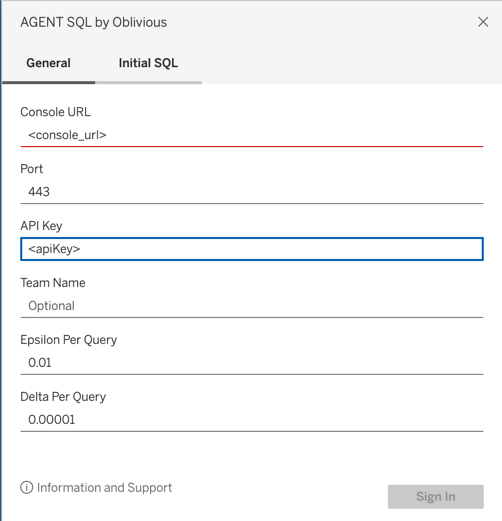
Click on the connector and you will see a dialog like this:
3
Enter your API Key in the
API Key field and console URL in the Console URL field. Fill Team Name if applicable. Also, put the value of Epsilon Per Query and Delta Per Query in the respective fields. These privacy parameters would be used for all the queries executed during the session. These are optional and if left blank, the default values set by the admin will be used. No privacy parameters can be specified in the query.4
If the console is deployed on some specific port, enter the port number in the
Port field. Note that the default port is 443 for https and 80 for http.5
Click on
Sign In and you will receive a token request in the AGENT UI. Approve the token request and you will be connected to the server.6
Once signed in, click on the search icon after
Enter table name to see a list of all tables. The search functionality is still in development. That is why the search query is currently ignored and the list of all tables is returned.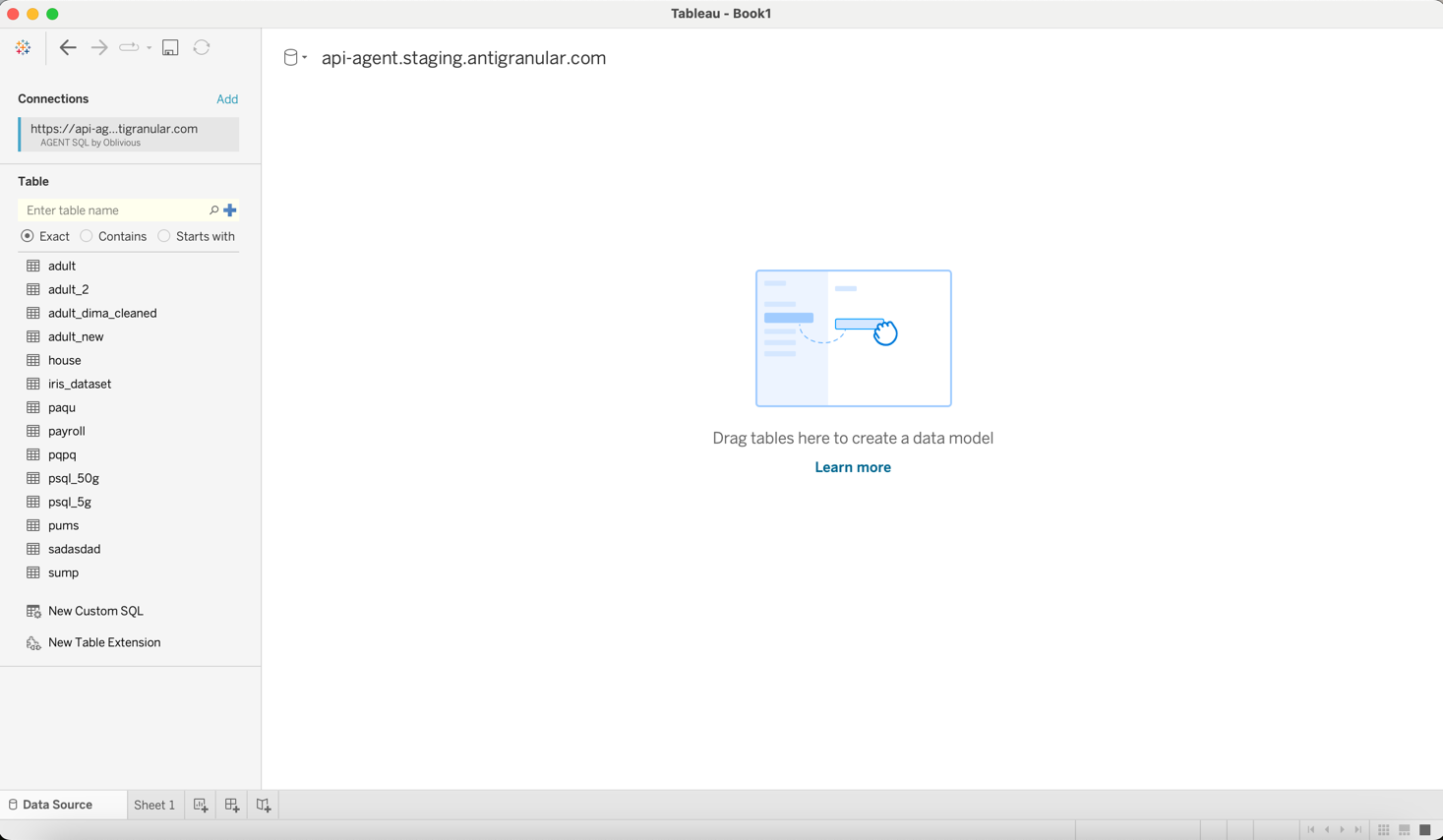
7
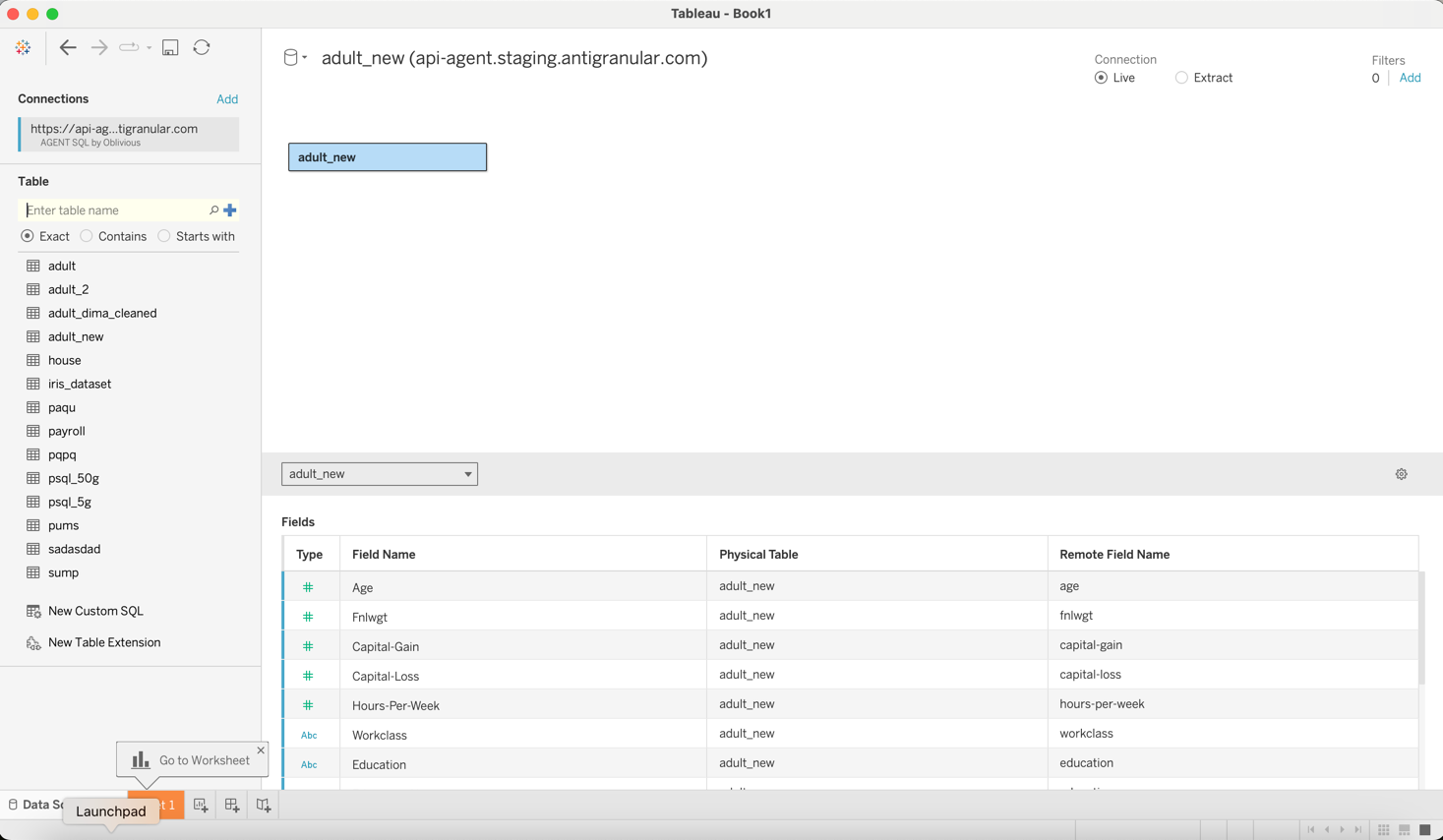
Since we currently only support single table queries, double-click on any table to load it to Tableau. It will show the list of columns for that table.
8
At the bottom left, click on
Sheet 1 to start writing the query. You can drag and drop the columns to the Columns and Rows sections to start visualizing the data.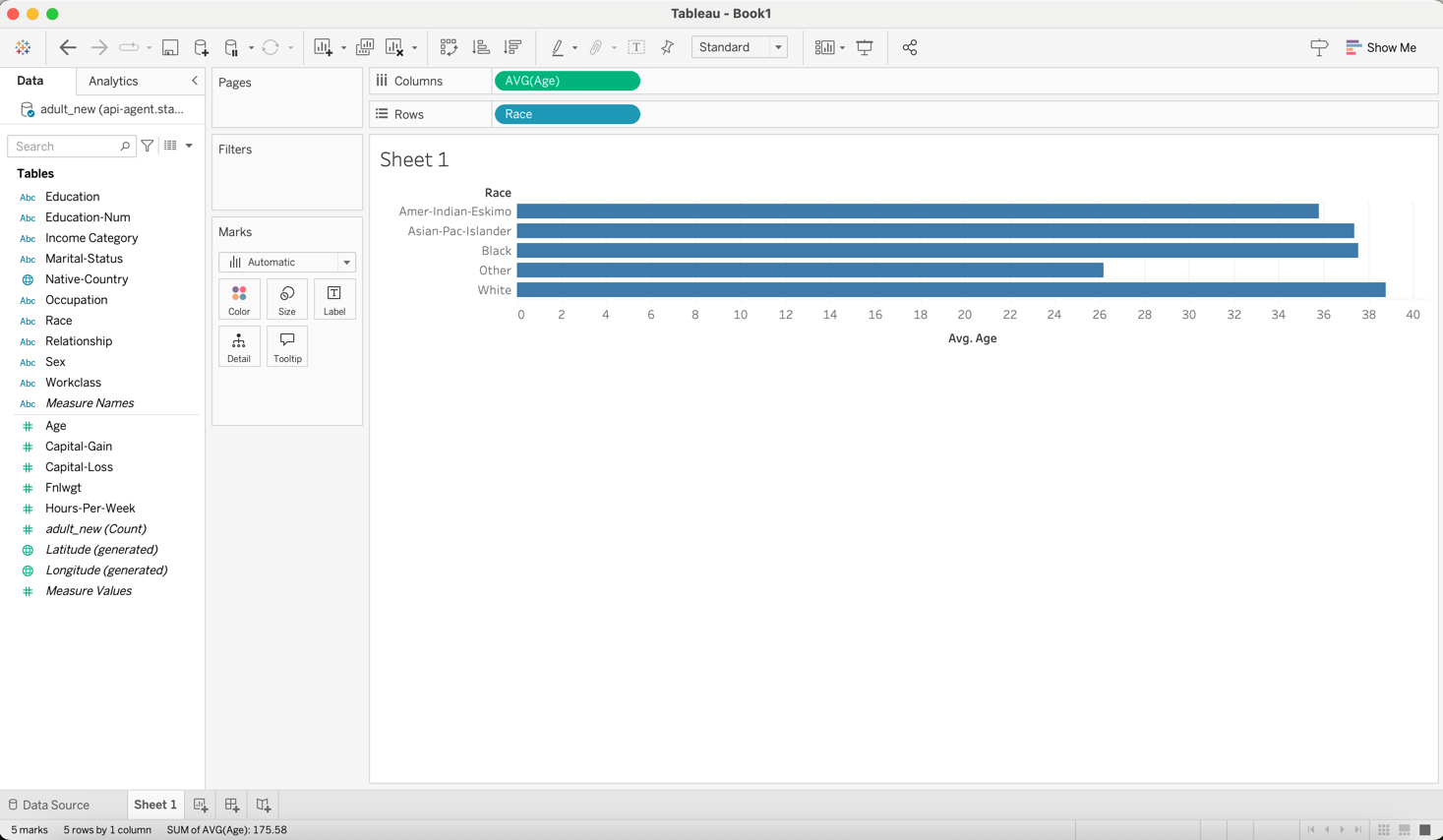
Things to note
- The Tableau support is still under development. There might be some issues while connecting or querying the data. Not all features in Tableau are supported yet.
- Multiple tables can't be joined in a single query. Only single table queries are supported.
- Not all aggregates are supported for differentially private queries. Only
COUNT,SUM,AVG,STD DEVare supported. Filters and group by also work with some restrictions. - The privacy parameters set at the time of login are used for all the subsequent queries. If you want to change the privacy parameters, you need to log out and log in again.